 Commandix
Commandix guide
Profile and Security
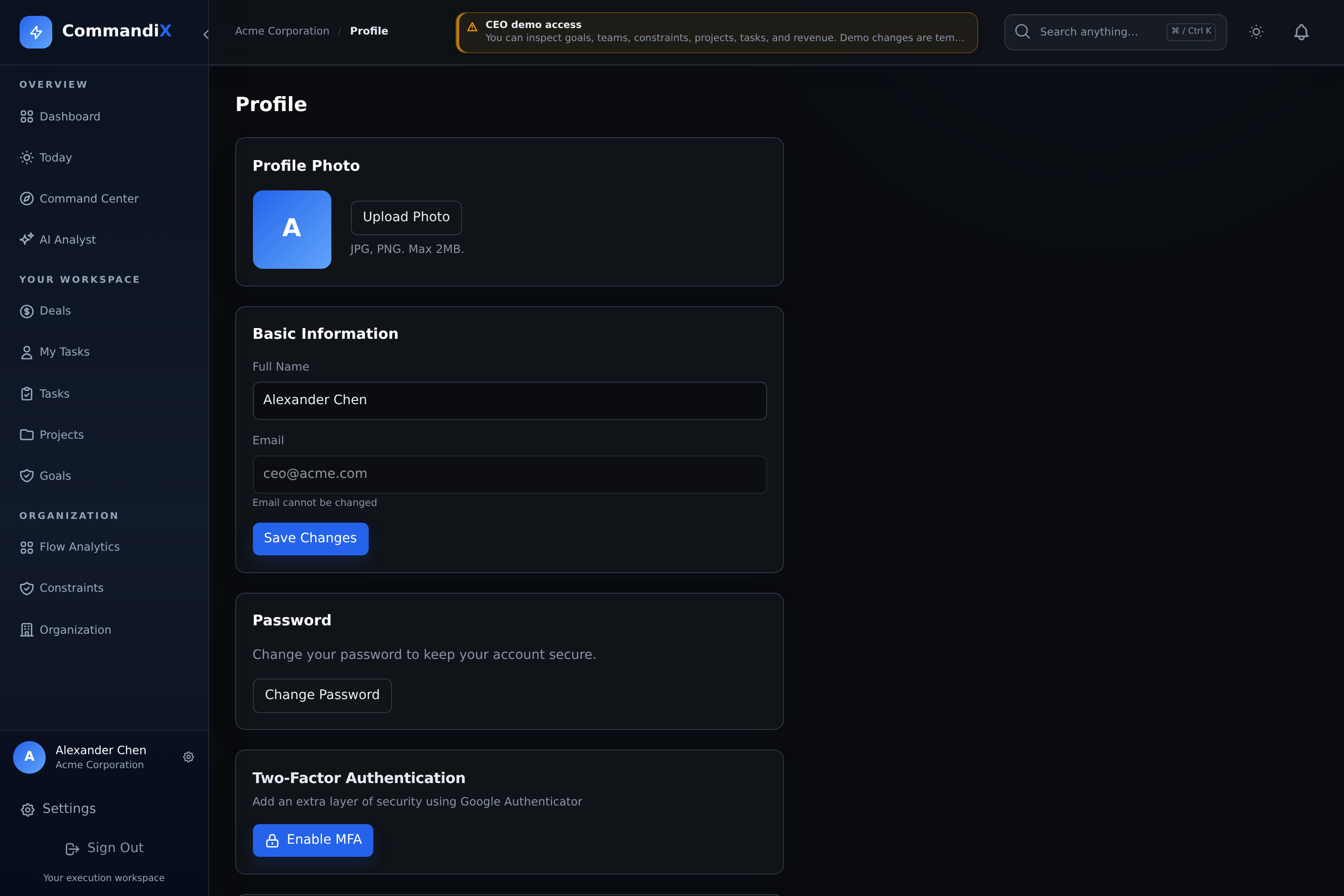
Profile is where each user controls personal information, password, MFA, personal data export, privacy requests, and security posture.
Last reviewed September 19, 2026
View this screen in Commandix
 Enlarge
How to update your profile
- Open Profile from the user menu or sidebar area.
- Update your full name or upload a profile photo. The email field is read-only.
- Save changes.
How to change your password
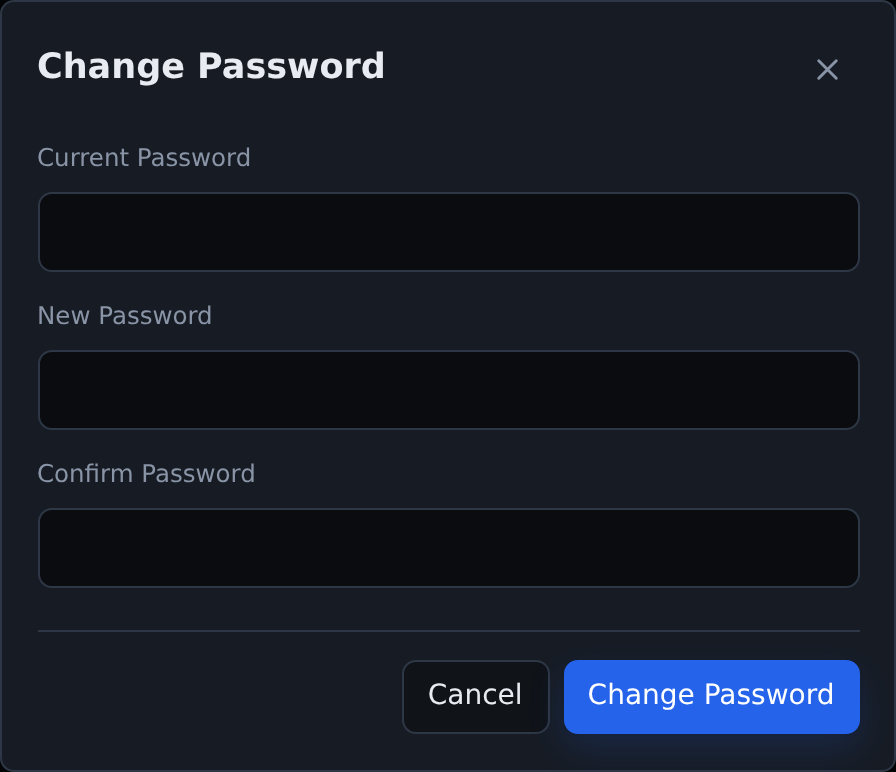
- Open Profile, find the Password section, and select Change Password.
- Enter current password.
- Enter and confirm the new password.
- Save. Commandix validates password strength and prevents reuse of recent passwords.
 Enlarge
How to enable MFA
- Open Profile and find Two-Factor Authentication.
- Select Enable MFA.
- Scan the QR code with an authenticator app or copy the secret manually.
- Enter the 6-digit authenticator code.
- Save the backup codes securely. They are shown after MFA is enabled.
Use an authenticator app that supports time-based one-time codes. Keep the setup QR code, manual secret, and backup codes private; they are deliberately not shown in this guide. Store recovery codes somewhere you can reach if your phone is unavailable.
How to disable MFA
- Open Profile and find Two-Factor Authentication.
- Select disable MFA.
- Enter your password and a current MFA token or backup code.
- Confirm. Trusted MFA devices are cleared when MFA is disabled.
Sessions and security events
Commandix records sessions and security events, but the current Profile page does not expose a session list or self-service session-revocation controls. Use Sign Out on a shared browser. If a device is lost or you suspect misuse, contact your administrator or support to review and revoke access; do not assume changing a profile field signs out other devices.
Privacy and GDPR requests
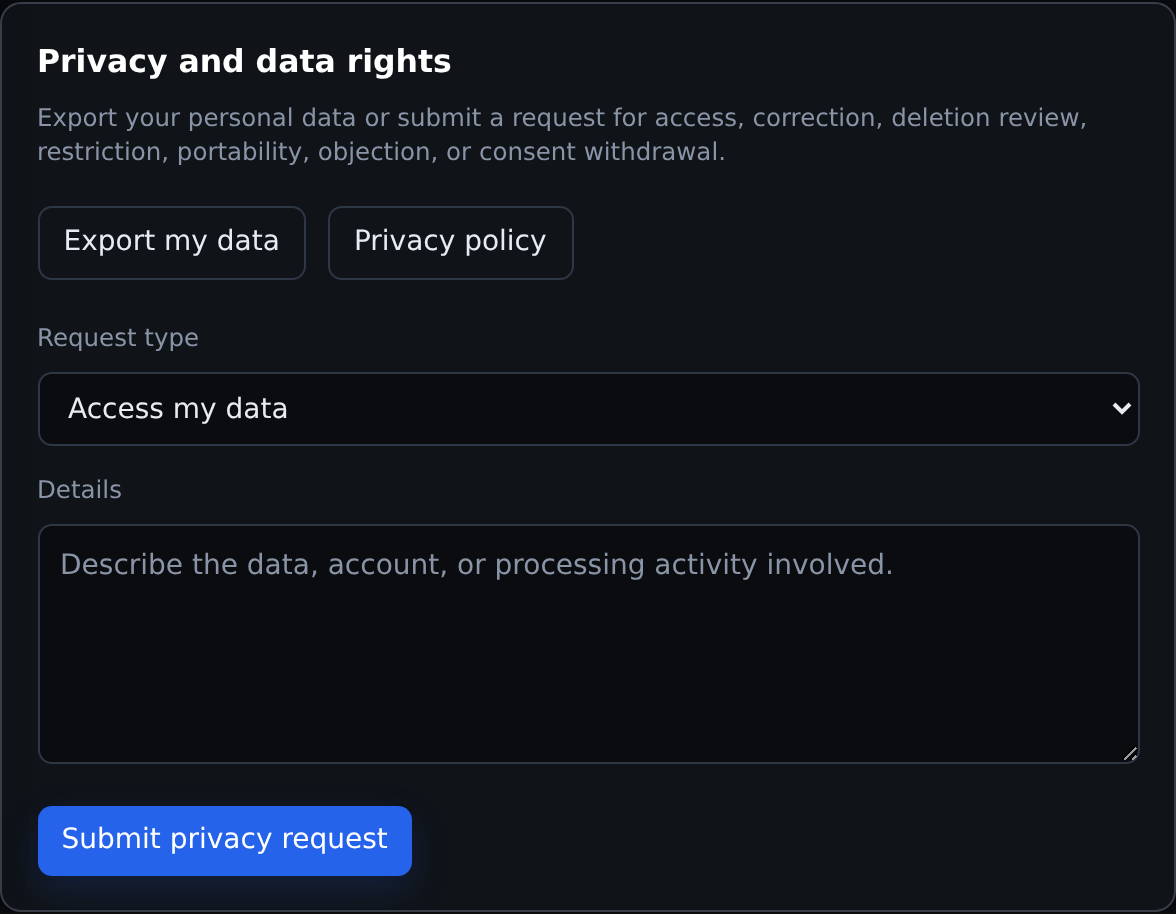
- Open Profile and scroll to Privacy and data rights.
- Select Export my data to download a JSON export of your account-related data. Treat the downloaded file as personal information.
- For access, deletion, correction, objection, or other privacy requests, choose the request type and write a short explanation.
- Submit the request. Commandix records the request and returns a reference.
 Enlarge