 Commandix
Commandix guide
Tasks and Subtasks
Turn a deliverable into owned work, choose useful settings, record blockers, and keep completion evidence. Use the examples and decision guides below alongside the field reference.
Last reviewed September 20, 2026
Planning work? Start with task structure. Breaking down a deliverable? Read nested task management. Work is stuck? Follow statuses and blockers.
View this screen in Commandix
 Enlarge
Write tasks that someone can finish
Use a task for a verifiable result with a responsible person. Use a subtask when that result contains separately managed work. Use a description or comment for supporting instructions that do not need their own status or owner.
| Record | Example | Use it to answer |
|---|---|---|
| Project | Launch the enterprise pilot | Which outcome are these deliverables supporting? |
| Task | Validate pilot requirements | What deliverable will be accepted, and by whom? |
| Subtask | Verify contractor sign-in | Which part needs its own execution and evidence? |
| Nested subtask | Check recovery after interrupted sign-in | Does a deeper test need separate tracking? |
| Dependency | Commitment approval waits for requirements validation | Which other task must finish first? |
| Comment | Security approved the revised recovery instructions | What changed or was decided? |
Deliverable: [observable result]. Done when: [acceptance checks]. Required input: [link or predecessor]. Reviewer: [name]. Evidence: [where the result will be recorded]. Exclusions: [what this task does not cover].
Avoid assigning a large parent and all of its children as if they were independent copies of the same effort. Open assigned parents and children can both enter queue calculations. Review the estimation limits before interpreting totals.
Find and export team work
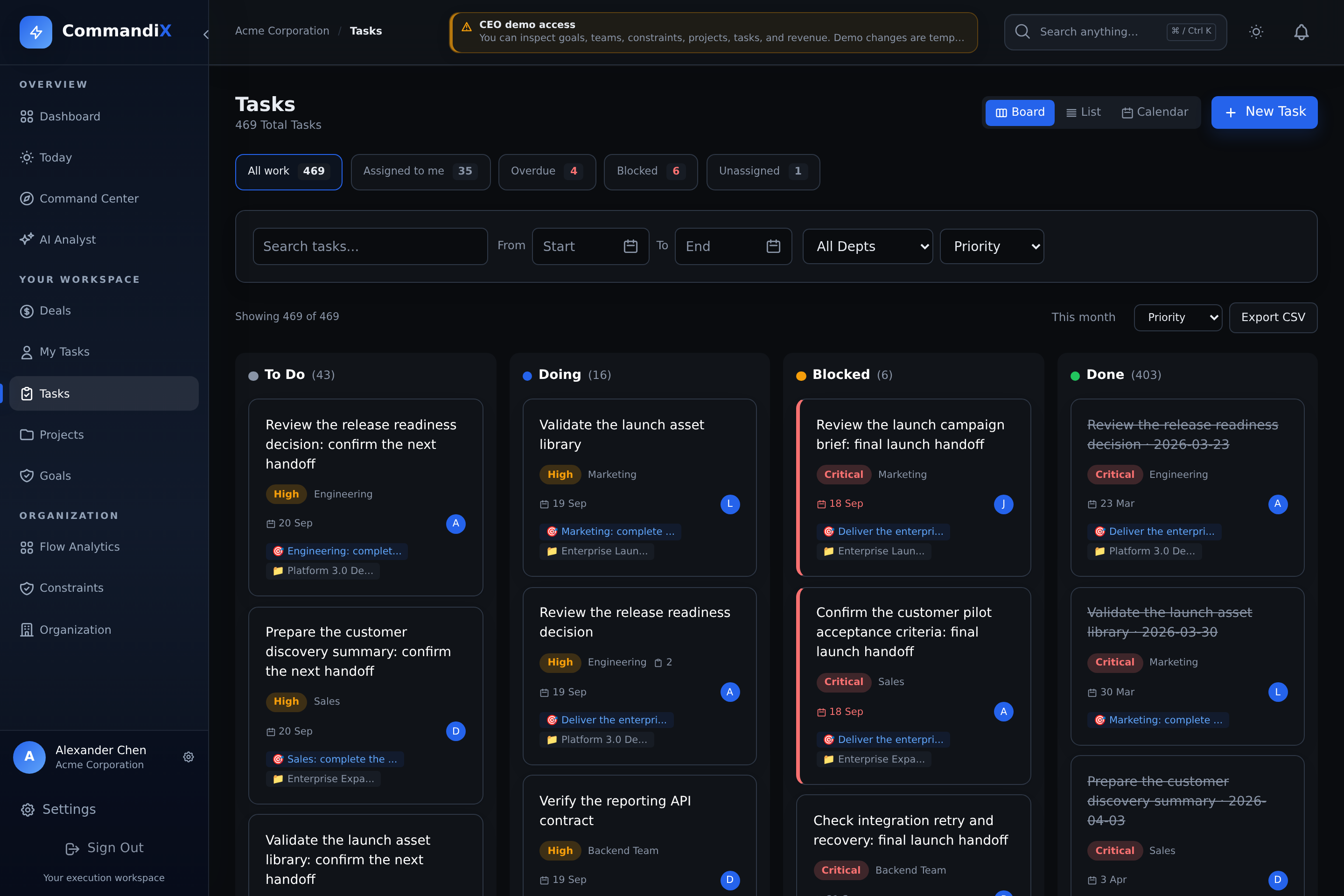
The manager Tasks page opens without a date restriction, so work without a due date remains visible. Choose Board, List, or Calendar; your preferred view is saved in this browser.
- Use Assigned to me, Overdue, Blocked, or Unassigned to focus the current list. Quick filters combine with the search and other filters.
- Search task titles, descriptions, assignees, projects, and departments. Sort by priority, due date, or name.
- This month applies a date range. Clear filters restores all work you can access, including undated tasks.
- Export CSV downloads the currently filtered tasks. The shown count helps you check the scope before exporting.
- A task due today is not overdue. Completed and cancelled tasks are excluded from the overdue quick filter.
How to create a task
- Open My Tasks for personal work, or Tasks for manager/team work.
- Select New Task.
- Enter a clear title. Add a description if the task needs context, acceptance criteria, links, or instructions.
- Choose an assignee or a department. A department-only task enters the team queue until someone claims or receives it.
- Set priority, status, start date, and due date.
- Optionally link the task to a goal or project. If linked to a goal, set the goal contribution weight.
- Set TOC fields: work type, estimated hours, aggressive estimate, safe estimate, and rework flag.
- Add recurrence and draft subtasks where available. Save the task before adding dependencies or comments from its detail dialog.
- Select Create. The task appears in the relevant board, list, calendar, project, goal, unit, and analytics views.
Task options reference
| Option | Values | Use it when |
|---|---|---|
| Title | Required text | The task needs a short outcome-oriented name. |
| Description | Optional text | The assignee needs background, links, requirements, or decisions. |
| Status | Planned (To Do), Active (Doing), Blocked, Done, Cancelled | Board labels can use To Do and Doing; edit forms use Planned and Active for the same states. Cancelled records can appear in lists but have no dedicated board column. |
| Priority | P1, P2, P3, P4 | You need ordering across the work queue. P1 is highest priority. |
| Assignee | Person or empty | A specific person owns the work. Empty assignee plus department creates team-queue work. |
| Department | Any available unit | The work belongs to a team, even if no person owns it yet. |
| Start date | Date | A planned scheduling date. It does not enforce a start gate or replace the recorded first move to Active. |
| Due date | Date | The task has a commitment date or calendar placement. |
| Goal | Any visible goal | The task contributes directly to a strategic or unit goal. |
| Goal Contribution | Weight control in the task editor | Sets relative contribution when the goal detail view calculates weighted completion. This is not a guarantee that every goal summary uses the same calculation. |
| Project | Any visible project | The task belongs to a project board, timeline, or dependency graph. |
| Work type | Business Project, Internal Project, Operational Change, Unplanned Work | You want analytics to show the type of demand hitting the system. |
| Rework | On or off | The task fixes previous work or a failure. This helps identify quality and process problems. |
| Estimated hours | Number | You want workload, throughput, and capacity analysis to be more accurate. |
| Aggressive estimate | Hours | The optimistic Critical Chain estimate, roughly the focused best-case duration. |
| Safe estimate | Hours | The conservative Critical Chain estimate. Commandix calculates buffer as half the difference. |
| Blocked reason | Text, shown for BLOCKED tasks | You need the system to know why work is stuck and who or what is blocking it. |
| Recurring type | None, Weekly, Monthly, Custom | The same task should repeat after completion. |
| Custom recurrence days | 1 to 365 days | The task repeats on a non-weekly/non-monthly cycle. |
Choose work type and priority consistently
Work type describes why the work entered the system. Priority describes its relative urgency. A task can be both high priority and internal work. These fields do not select a constraint-solving action.
| Work type | Choose it for | Example and boundary |
|---|---|---|
| Business Project | A planned customer, product, or commercial deliverable. | Pilot acceptance or launch preparation. Being in a project does not make every task business work. |
| Internal Project | A planned improvement to how your organization operates. | Replace an internal approval process or prepare a team playbook. |
| Operational Change | A deliberate change needed to keep an existing service or process operating. | Rotate service credentials or update an established reporting procedure. |
| Unplanned Work | An interruption that was not in the agreed plan. | Investigate an unexpected production failure. A scheduled maintenance task belongs in a planned category. |
Mark Rework when the task corrects previous work or a failure. Rework can belong to any work type. Agree examples with your team so two departments do not classify the same kind of work differently. Changing categories to improve a chart hides demand instead of addressing it.
P1 is the highest of four priorities. A useful team policy reserves P1 for work with an immediate, agreed consequence, uses P2 for the next committed work, P3 for the normal queue, and P4 for deferrable work. This is a suggested operating convention, not an enforced service-level policy. If everything is P1, ask the accountable owner to choose an order.
Set estimates without double-counting the work
Estimated hours is a workload input, not a calendar duration or measured time sheet. A six-hour task can span several days if it waits for an approval. Use one estimation convention across the team and update assumptions when scope changes.
Aggressive estimate and Safe estimate describe two planning cases. For example, focused work may take eight hours, while normal uncertainty makes twelve hours a safer estimate. With both positive values present, Commandix stores a task buffer of half the difference: (12 - 8) / 2 = 2 hours. Keep Safe at least as large as Aggressive. Do not treat either estimate as a guaranteed delivery date.
A feeding buffer belongs to a dependency handoff. Use it when the downstream work needs protection against variation in that incoming branch. It is separate from the task's two-point estimate. A buffer does not add people, reserve a calendar slot, or automatically move every dependent due date.
Some queue calculations substitute four hours for missing or zero estimates. Assigned parents and their assigned children can both be counted, and parent rollups are not automatically deduplicated from that queue. Neither blank nor zero is a reliable "exclude from capacity" switch. Keep coordination-only parents distinct from executable work and validate totals against the underlying tasks.
The general Tasks editor exposes work type, rework, estimates, and blocked reason. The project's compact task editor exposes a smaller field set. Use the general Tasks page when you need those additional fields. For a nested task, open its parent and select the subtask.
How to create subtasks
While creating a task
- Open New Task.
- Scroll to the Subtasks section.
- Type a subtask title and add it to the list.
- Repeat for each subtask.
- Create the task. Commandix creates the parent task first, then creates each subtask under it.
After a task already exists
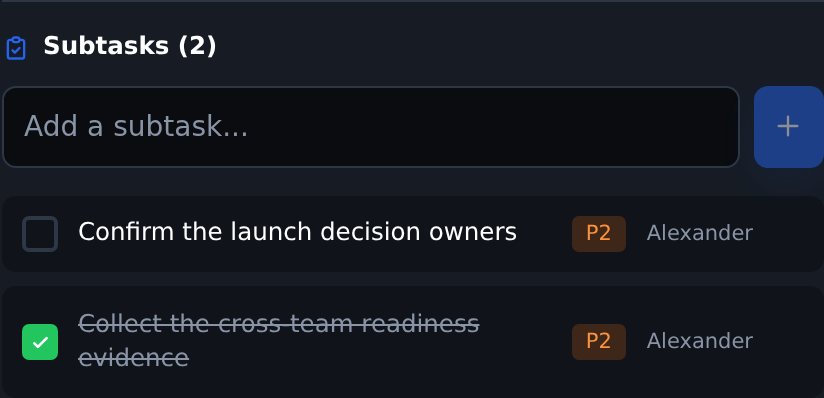
- Open the task detail modal.
- Find the Subtasks section.
- Type the subtask title and add it.
- Use the status toggle to mark a subtask done or active.
- Select a subtask to view or edit its details.
 Enlarge
Manage nested work, ownership, and parent completion
A subtask is a task record with its own status, assignee, dates, and comments. In the project task dialog, select a subtask to open it, then use its Subtasks section to add another level. Use Back to parent or the parent link to return. The project's Mind map lets you inspect these levels together.
- Create the child under the correct parent. The quick-add flow copies available project, unit, goal, assignee, and priority context from that parent.
- Open the new child and verify its owner. Inherited ownership is a starting point, not evidence that this person accepted the assignment.
- Set its dates and acceptance details. Quick-add does not copy all parent dates, estimates, or work-type settings.
- Add explicit dependencies when a child must wait for other work. Hierarchy indicates containment, not execution order.
- Review every child before accepting the parent deliverable. Update parent status and progress deliberately.
Completing the last child does not automatically certify the parent's result, and marking a parent Done does not complete every child. The three-level demo includes pre-calculated example estimates and progress. Those seeded values are not a promise of automatic rollups for edited customer tasks.
The general task list normally shows root tasks. Open a parent to find its children, or use the project's Mind map. Permission filtering can hide unassigned or inaccessible ancestors. Missing branches can therefore be an access issue rather than missing data. Subtasks do not recur automatically with a recurring parent.
How recurring tasks work
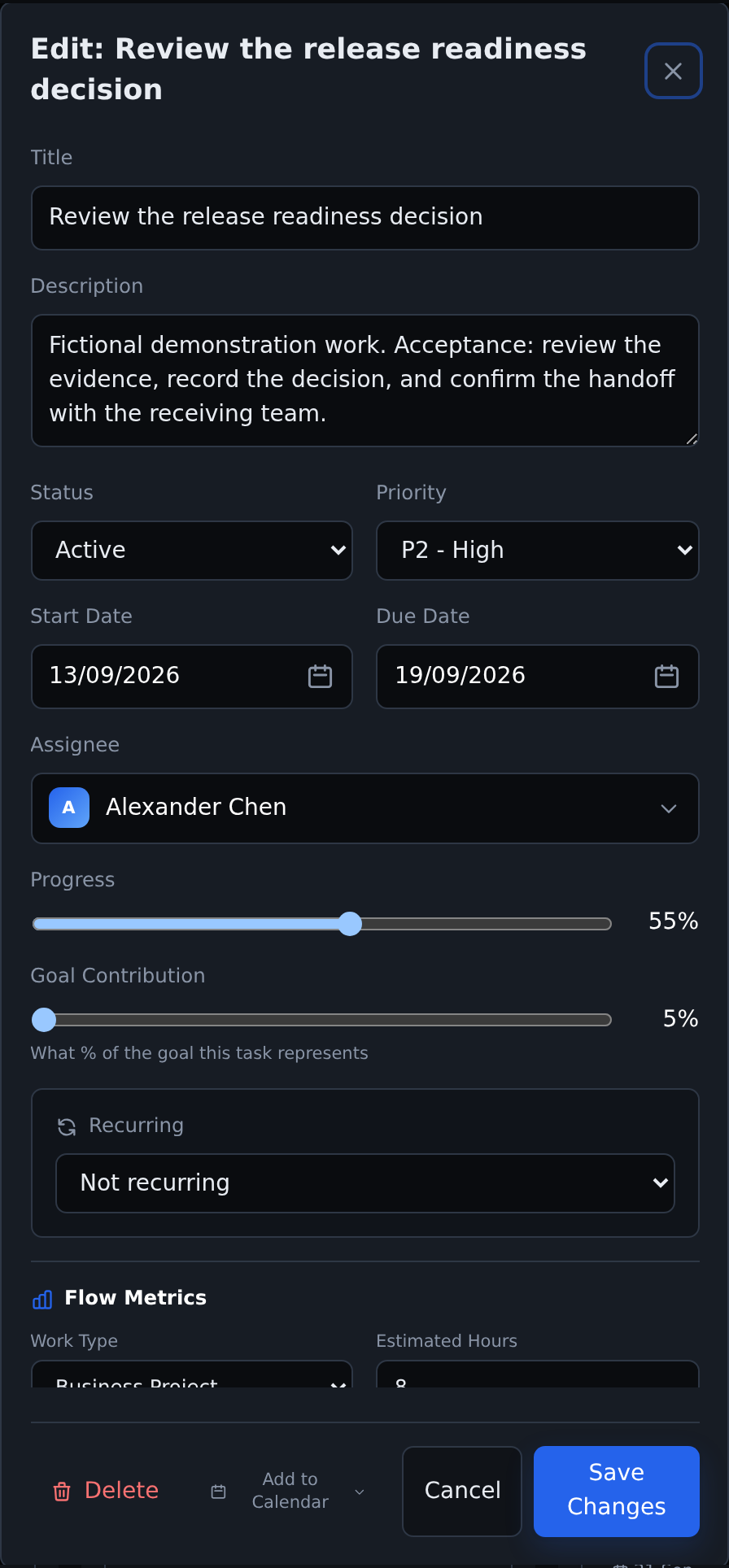
Commandix currently supports recurrence on parent or standalone tasks, not on subtasks. Recurrence options are None, Weekly, Monthly, and Custom. Custom uses a day interval.
- Create or open a parent task.
- Set Recurring to Weekly, Monthly, or Custom.
- If Custom, enter the number of days between repetitions.
- Save the task. When you mark it Done, Commandix reuses the same task: its status returns to Planned, progress resets to zero, and its start date moves forward by the selected interval from the completion date.
This does not create a separate task for each occurrence, and the next cycle does not start until you complete the current one. If the task has a valid start and due date, its duration is preserved when the dates advance; otherwise the next cycle has no due date. Review its dates after completion.
 Enlarge
How to add dependencies
- Create or open the successor task: the task that must wait.
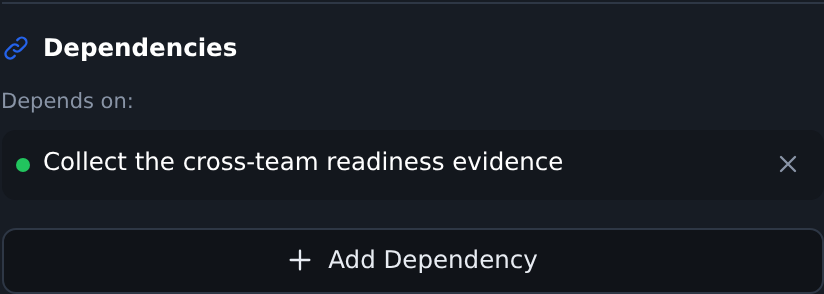
- Open Dependencies.
- Select the predecessor task: the task that must finish first.
- Optionally set feeding buffer hours when the dependency protects a critical chain junction.
- Save the dependency. The project dependency graph will use it when the task belongs to a project.
 Enlarge
The general Tasks dialog's Add Dependency flow supports a predecessor and optional feeding buffer. The project's simpler dependency selector lists other root tasks in that project. It saves finish-to-start links, so it is not an editor for preserving advanced link types or buffers. Check existing advanced relationships before saving through that selector. Graphs show only links whose endpoints are in their visible scope.
Choose the right status and record a useful blocker
| State | Use it when | Avoid this mistake |
|---|---|---|
| Planned / To Do | The task is accepted into the queue but execution has not started. | Marking the whole backlog Active to show commitment. |
| Active / Doing | Someone has started executing the task. | Leaving completed work Active until the next reporting meeting. |
| Blocked | A specific missing input, decision, dependency, or external event prevents progress. | Using Blocked for every low-priority task that simply has not started. |
| Done | The acceptance condition is met and evidence is available. | Using 100% progress as a substitute for the Done status. |
| Cancelled | The work is no longer required. | Counting a cancelled commitment as delivered output. |
Record status changes when they happen. Commandix uses task history and the first move to Active for flow measurements. A planned start date is not the same as the recorded start of work. Backdating a planned date does not recreate missing status history.
In the Tasks editor, choosing Blocked reveals Blocked reason. State what is missing, the task or decision involved, who can provide it, and the next follow-up. Preserve the resolution in a comment when the blocker clears.
Pilot handoff cannot proceed until the security review task is accepted. Waiting for the review owner to confirm the recovery-path evidence. Follow up at Thursday's review. The handoff task depends on the review task.
A dependency records the relationship. Blocked status records the current operating condition. Saving a link is not an automatic lock on task execution or an automatic rescheduler. Check the predecessor's status before releasing the successor, and update the task's status and reason yourself when needed.
Keep the task record useful during execution
- Choose the next ready task with your manager or project owner. Check its predecessors and required inputs before starting.
- Move it to Active when execution starts. Use Today to keep the agreed focus visible.
- If it stops, record a specific blocker and contact the person who can remove it. Moving a due date alone does not explain the interruption.
- Attach or link the result and record the acceptance decision. Review any children, then mark Done when the task meets its completion condition.
- For recurring work, inspect the next dates after completion. For external-source work, follow the source-system rules shown in the task.
Troubleshoot missing or misleading task information
| Question | Check this first |
|---|---|
| Why is a subtask absent from Tasks? | The root-task list excludes children by default. Open its parent or the project Mind map. |
| Why did Done return to Planned? | A recurring root task reuses the same record for the next cycle. Review its recurrence and new dates. |
| Why is completed work still open? | Progress and status are separate fields. Check status, recurrence, and unfinished children. |
| Why is a deadline absent from Calendar? | Check the task due date, current month, filters, project link, and access. The parent's date does not automatically date its children. |
| Why does the queue look too large? | Check duplicate parent/child estimates, unmaintained Active tasks, missing estimates, and the capacity assumptions. Counts alone do not identify the cause. |
| Why are fields read-only? | Check your permissions and any external-source notice. Inbound Jira work may need to be edited in Jira rather than Commandix. |
| Why was a dependency rejected? | Check for a self-link, duplicate, circular path, inaccessible predecessor, or a task outside the current selector's scope. |
Comments and attachments
How to comment on a task
- Open the task detail modal.
- Find the Comments section.
- Write the update, decision, blocker note, or handoff context.
- Add the comment. The newest comments stay attached to the task history.
- Delete a comment only when it was added by mistake and you have permission to remove it.
How attachments work
- Open a task from My Tasks or the relevant task view.
- Review the Attachments section for linked files and their sizes.
- Select an attachment to open or download it.
- File access is tenant-isolated and checked against task permissions.
- The upload backend supports allowed MIME types up to 10 MB per attachment.
How to block task time on a calendar
- Open a task with a due date.
- Select Add to Calendar.
- If Microsoft 365 calendar is not connected, connect it first.
- Choose all-day event or block time.
- For block time, set start time and duration. Commandix shows the calculated end time before saving.
- Remove the calendar event later from the same task detail view.
Task views
Board
Drag tasks across To Do, Doing, Blocked, and Done. Planned and Active are the corresponding edit-form states.
List
Scan many tasks with filters. Best for sorting, auditing, and manager review.
Calendar
View tasks by due date in a month layout. Best for deadlines and scheduling.
My Tasks
Personal task list with progress stats, create task modal, recurrence, subtasks, dependencies, and calendar push.
Tasks
Manager/team view for work across visible units, with filters by date, unit, status, priority, and search.