 Commandix
Commandix guide
Settings and Users
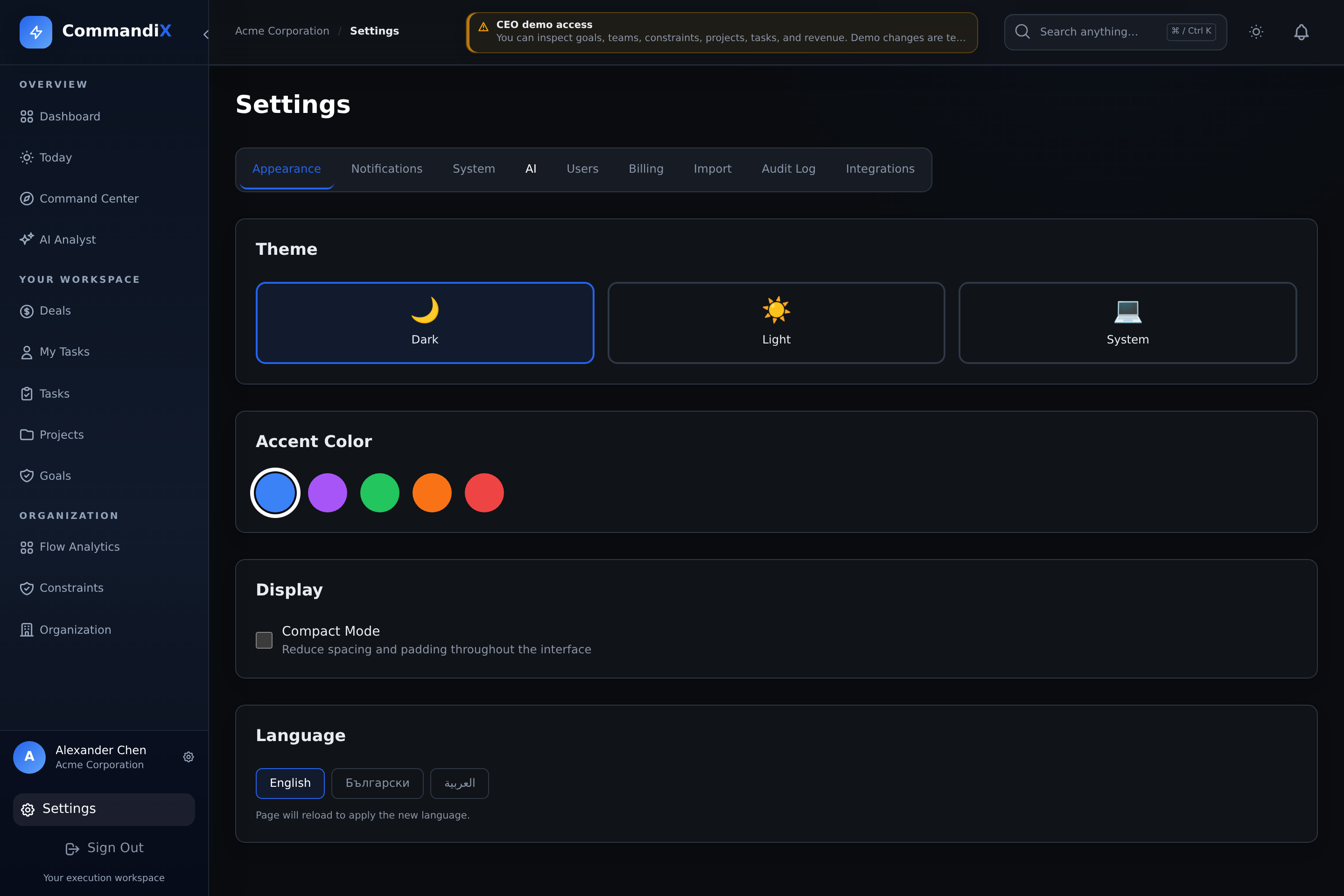
Settings centralizes personal preferences, organization controls, user administration, audit visibility, data import, and integrations. Available tabs depend on role and section access.
Last reviewed September 19, 2026
View this screen in Commandix
 Enlarge
Settings tabs
| Tab | Who typically sees it | Purpose |
|---|---|---|
| Appearance | All users | Theme, language, compact mode, accent color, and personal UI preferences. |
| Notifications | All users, with company controls for admins | Slack notification preferences for task assigned, due, and completed events. |
| System | OWNER and SUPERADMIN | Organization name, slug, default currency, and SSO flags. |
| AI | OWNER and SUPERADMIN; live configuration is disabled in demos | Configure and test provider keys for the AI Analyst. |
| Billing | OWNER | Current plan, seat availability, payment links, renewal dates, and payment history. |
| Users | OWNER or user-management section access | Search users, update role, team membership, unit head assignments, section access, MFA resets, and access removal. |
| Import | Admin roles | Demo data import/delete and CSV user import with invitations. |
| Audit Log | OWNER and SUPERADMIN | Activity log, login events, filtering, pagination, and CSV export. |
| Integrations | OWNER, SUPERADMIN, or user-management access for the Entra picker | Search and add selected Entra users. Tenant owners also configure Jira and GitLab project connections. |
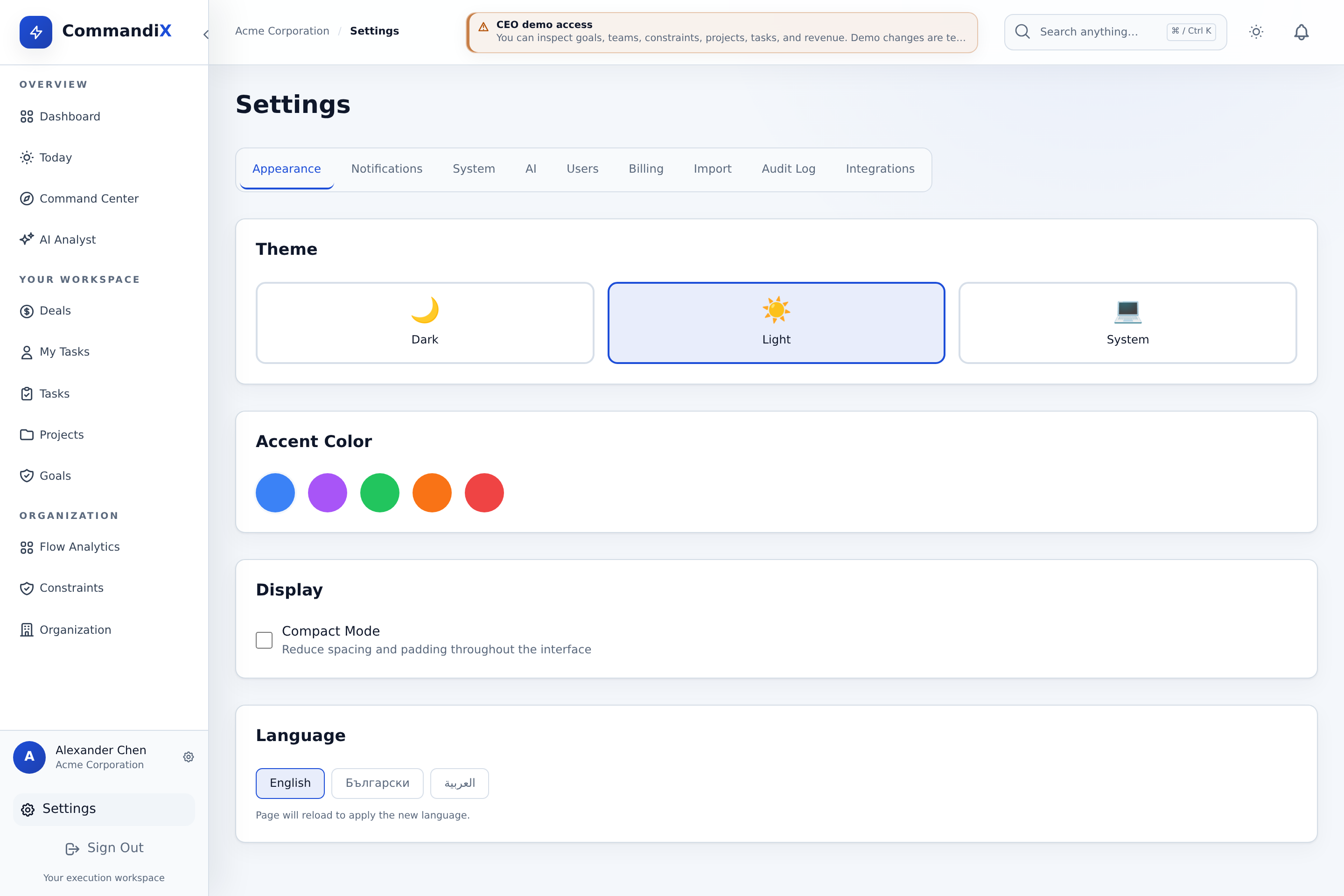
Choose light, dark, or system theme
Open Settings -> Appearance and select Light, Dark, or System. System follows your device preference. The sidebar and the workspace follow the selected theme together. Appearance changes apply to your account, not every colleague's screen; demo preferences stay in the current demo browser session.
 Enlarge
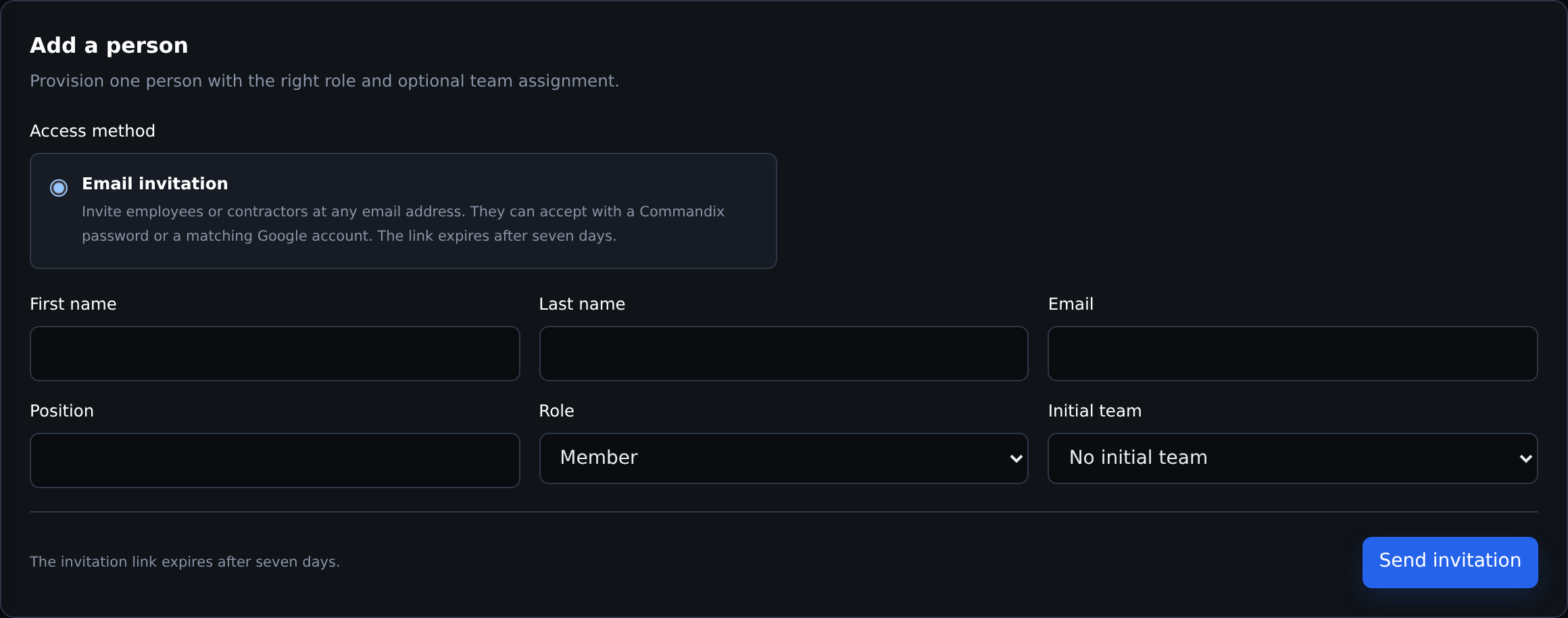
Invite employees and external contractors
- As an organization owner, open Settings -> Users -> Add people and select Email invitation.
- Enter any valid email address, including Gmail, Outlook, Microsoft 365, Yahoo, or a contractor's own domain. The address does not have to match your organization's domain.
- Choose Member or Viewer and the initial team, then send the invitation. Invited users occupy a seat on the organization's plan.
- The recipient opens the link within seven days and creates a Commandix password. This works with any email provider.
- Alternatively, when Google sign-in is available, the recipient can choose Accept with Google. The Google account must have the exact invited email address; personal Gmail accounts are supported.
After accepting with Google, use Google again on the sign-in page. If the same account belongs to multiple organizations, use the organization-specific login link. Invitation-based Google access applies only to the invited account and does not enable Google Workspace directory sync or change organization-wide SSO settings.
External users receive the existing Member or Viewer permissions, not a separate project-isolated guest role. Review their role, team memberships, and additional permissions before sharing work. Removing a user revokes pending invitations and prevents sign-in.
Microsoft 365 work or school accounts can use Microsoft SSO where the organization has enabled it. Personal Microsoft and other email accounts can always use the invitation's password option; this does not add SSO for every email provider. Creating a new organization through Google still requires Google Workspace.
 Enlarge
Invitation links are single-use. If a link is expired or already used, ask your administrator for a new one, or sign in if you have already accepted. If Google reports an email mismatch, reopen the original invitation and choose the exact invited account. Do not forward the link to another person.
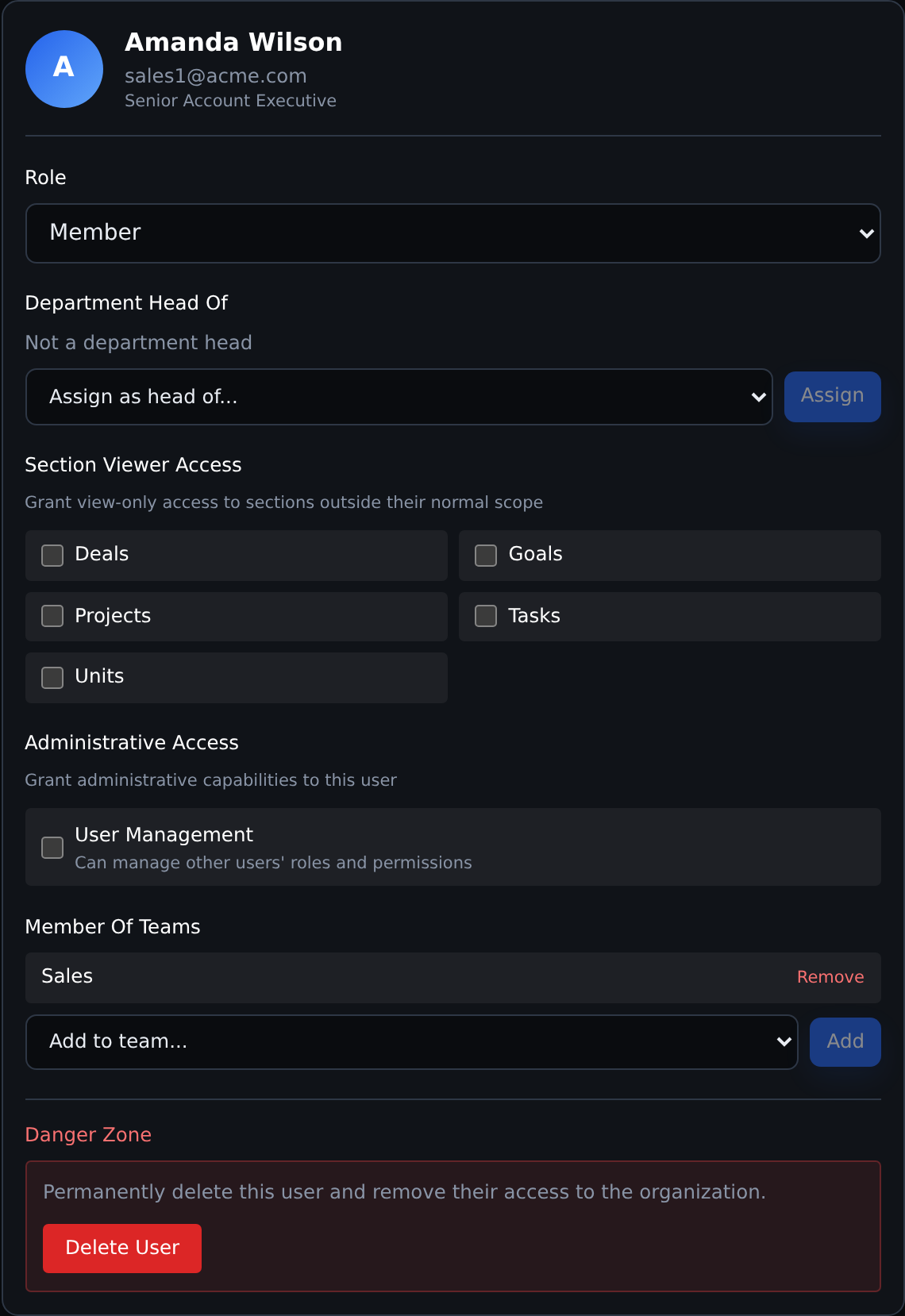
How to manage a user
- Open Settings -> Users.
- Search for the user by name or email.
- Open the user record.
- Update role if needed.
- Add or remove unit head assignments.
- Add or remove team memberships.
- Toggle section access for modules such as deals, goals, projects, tasks, units, or user management.
- If the user loses MFA access, use disable MFA so they can re-enable it from Profile.
- Remove the user when their access should end. This deactivates the account, revokes pending invitations, releases its seat, and unassigns its work; it does not erase historical records. Use the privacy request process for personal-data deletion requests.
Manage your plan and seats
New organization pricing is custom. Contact sales to discuss scope and terms. Existing customers with self-service billing can continue using the controls below; their billing and renewal workflow is unchanged.
- As an Owner, open Settings -> Billing. The page contains your plan and billing details.
- Check your current plan, assigned seats, available seats, and subscription status. Pending invitations reserve seats too.
- If you need more seats, choose a paid seat count that covers your assigned users. Review the price shown before continuing.
- Where payments are configured, select Pay with DSK Bank or Pay or renew with DSK to open the payment flow. A plan or seat change becomes active only after payment is confirmed.
- Review the subscription end date and payment history. Renewal uses a new payment link; do not assume automatic renewal.
If payment is unavailable or you need development-system integrations such as Jira and GitLab, contact support about your organization's entitlement. See enterprise pricing enquiries. Do not remove active colleagues just to work around a seat limit.
Role reference
| Role | Recommended use |
|---|---|
| SUPERADMIN | Platform operator with tenant-level administration. |
| OWNER | Executive or tenant owner with full organization access. |
| MEMBER | Standard employee who manages assigned work and visible team context. |
| VIEWER | Read-oriented user. Add section access when a viewer needs specific module visibility. |
 Enlarge
How to use audit logs and login events
- Open Settings -> Audit Log.
- Use Activity Log for create, update, and delete events across entities.
- Filter by tenant, user, entity type, and action when available.
- Use Login Events for login success, login failure, MFA events, and lockout signals.
- Export CSV when you need evidence for investigation, compliance review, or customer assurance.
How to import users
- Open Settings -> Import.
- Download the CSV template or prepare a file with name, email, position, and role columns.
- Select the organization if using superadmin import.
- Upload the CSV and review the preview rows.
- Run import and send invitations.