 Commandix
Commandix guide
Projects
Projects group work by outcome, department, goal, dates, owner, collaborators, and task flow. A project can act as a reusable operating template for repeatable work.
Last reviewed September 20, 2026
New project? Start with scope and ownership. Need a realistic plan? Follow the pilot example. Already delivering? Use the weekly review.
View this screen in Commandix
 Enlarge
Find the right project
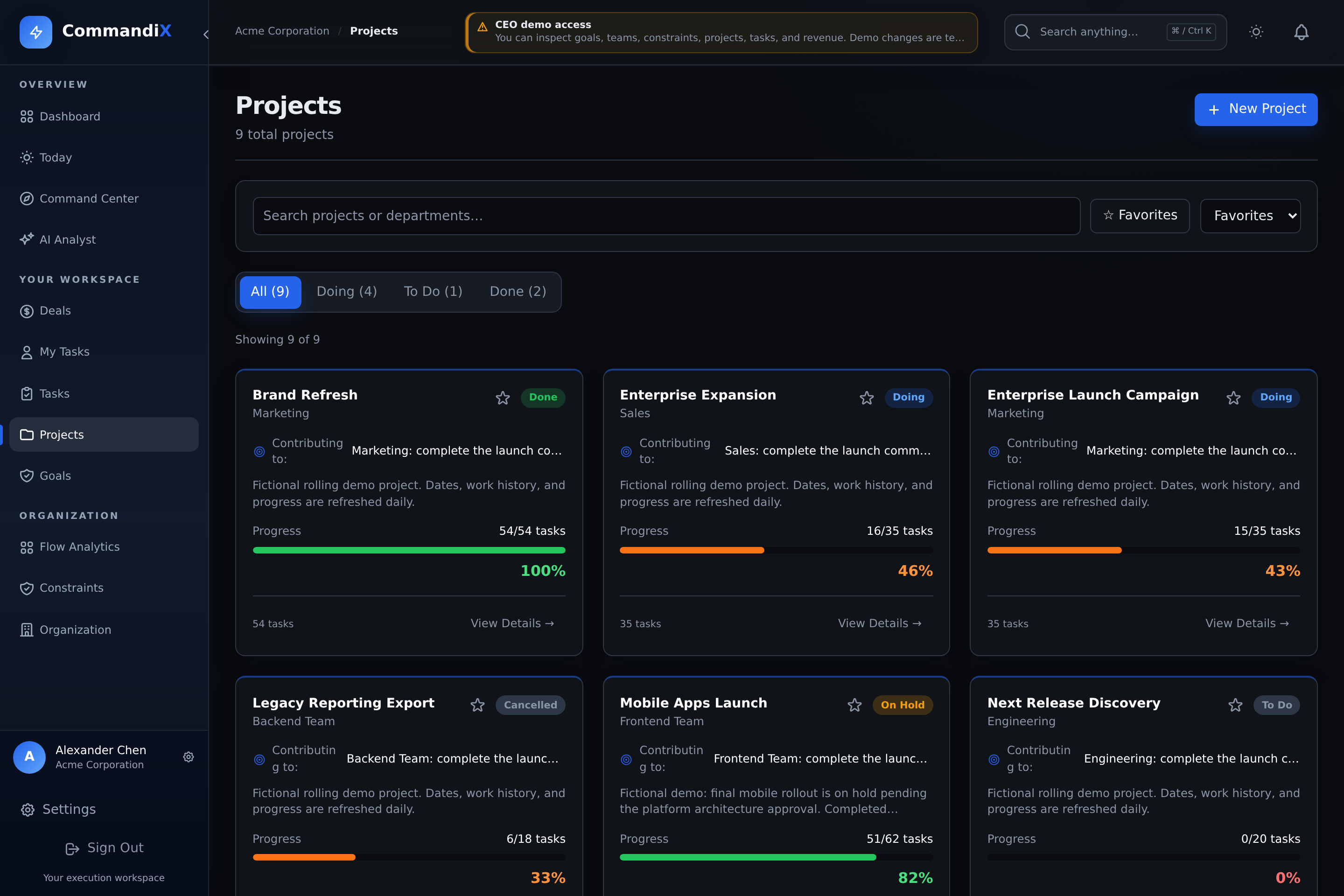
Search by project name, description, or department. Combine the search with status and favorite filters, then sort by favorites, name, due date, or progress. The result count shows how much of the portfolio is visible. Select the project name or View details to open it.
If a filtered list is empty, clear the filters. If loading fails, use Try again. When creating a project, its end date cannot be earlier than its start date.
How to create a project
- Open Projects.
- Select New Project.
- Enter project name and optional description.
- Choose the department or unit responsible for the project.
- Optionally link the project to a goal.
- Set start and end dates.
- Create the project, then open the project detail page to add tasks and members.
Project options reference
| Option | Values | Use it when |
|---|---|---|
| Name | Required text | The project needs a clear outcome name. |
| Description | Optional text | You need project scope, success criteria, or operating notes. |
| Department | Required unit | Work belongs to a team or business unit. |
| Goal | Optional goal | The project contributes to a strategic or unit goal. |
| Start date | Date | The project should begin at a defined time. |
| End date | Date | The project needs a delivery or review boundary. |
| Status | PLANNED, ACTIVE, ON_HOLD, DONE, CANCELLED | You need portfolio status, filtering, and operational visibility. |
| Owners | Up to 2 people | The project needs executive or delivery accountability. |
| Collaborators | Any active users | People need explicit project membership outside task assignment. |
| Favorite | Star on/off | You want the project pinned in the sidebar for fast access. |
Design a project around a deliverable
Before entering tasks, name the result, the person who accepts it, and the delivery boundary. "Launch the enterprise pilot with approved access and support handoff" is easier to manage than "Enterprise work". Put the scope, exclusions, acceptance criteria, and review cadence in the project description. These are operating notes, not separate approval or workflow settings.
| Decision | Recommended choice | Why it matters |
|---|---|---|
| One project or several? | Keep work together when it shares one acceptance decision. Separate independently deliverable outcomes with different owners or review cycles. | A giant departmental backlog makes completion and delivery risk difficult to interpret. |
| Responsible department | Choose the unit accountable for delivery. Assign individual tasks to the people doing the work, including other departments where your access permits. | Project accountability and task ownership answer different questions. |
| Goal link | Link the goal the project is expected to move. Check task-level goal links separately. | A project link does not replace the task's own goal and contribution settings. |
| Owner or collaborator? | Use the available owner slots for delivery accountability. Add collaborators for project involvement. | Membership does not assign the project's tasks or grant organization-wide access. Check permissions with the person's actual account. |
| Dates | Use project dates for the delivery boundary and task dates for individual commitments. | Changing project dates does not automatically reschedule every task or dependency. |
Outcome: [deliverable]. Accepted when: [observable checks]. Out of scope: [exclusions]. Delivery owner: [name]. Acceptance owner: [name]. Review: [cadence]. External commitments: [dates and links].
 Enlarge
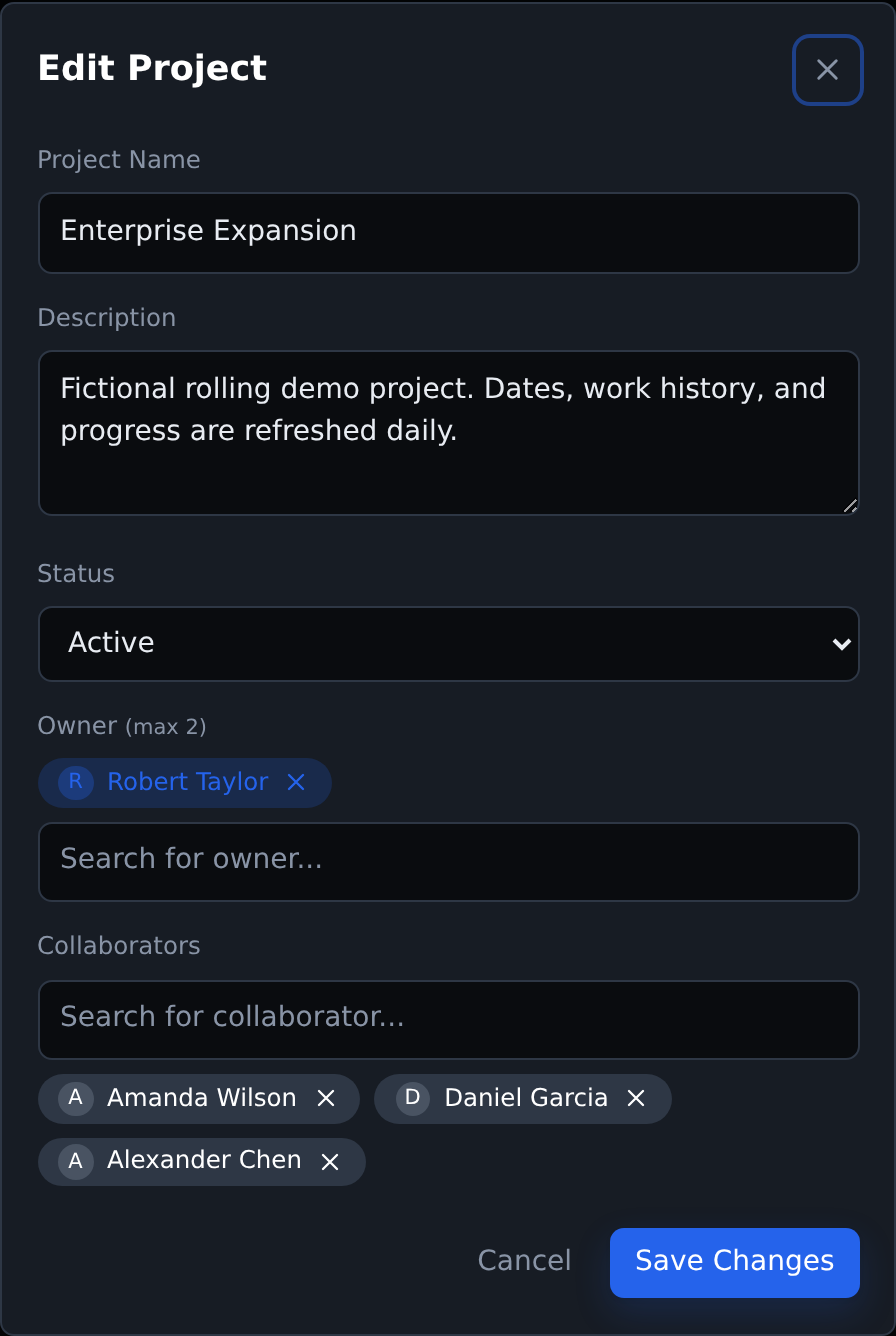
Creation and editing differ: New Project includes department, goal, and project dates. The current Edit Project dialog exposes name, description, status, owners, and collaborators, but not those three setup fields. Verify them when creating the project. If an existing project needs a correction that is not exposed, ask an authorized administrator or support rather than searching for a hidden control.
Worked example: plan an enterprise pilot
This fictional example shows how to create useful depth without turning every sentence into a task. Start with five deliverables: confirm pilot scope, prepare commercial terms, validate pilot requirements, approve the pilot commitment, and hand off the customer pilot.
- Create the project with a responsible department, optional goal, and delivery dates. Open Edit in the project to review its description, status, owners, and collaborators.
- Create the five deliverable tasks in Tasks or My Tasks, selecting this project. Give each task a responsible person and a clear completion condition.
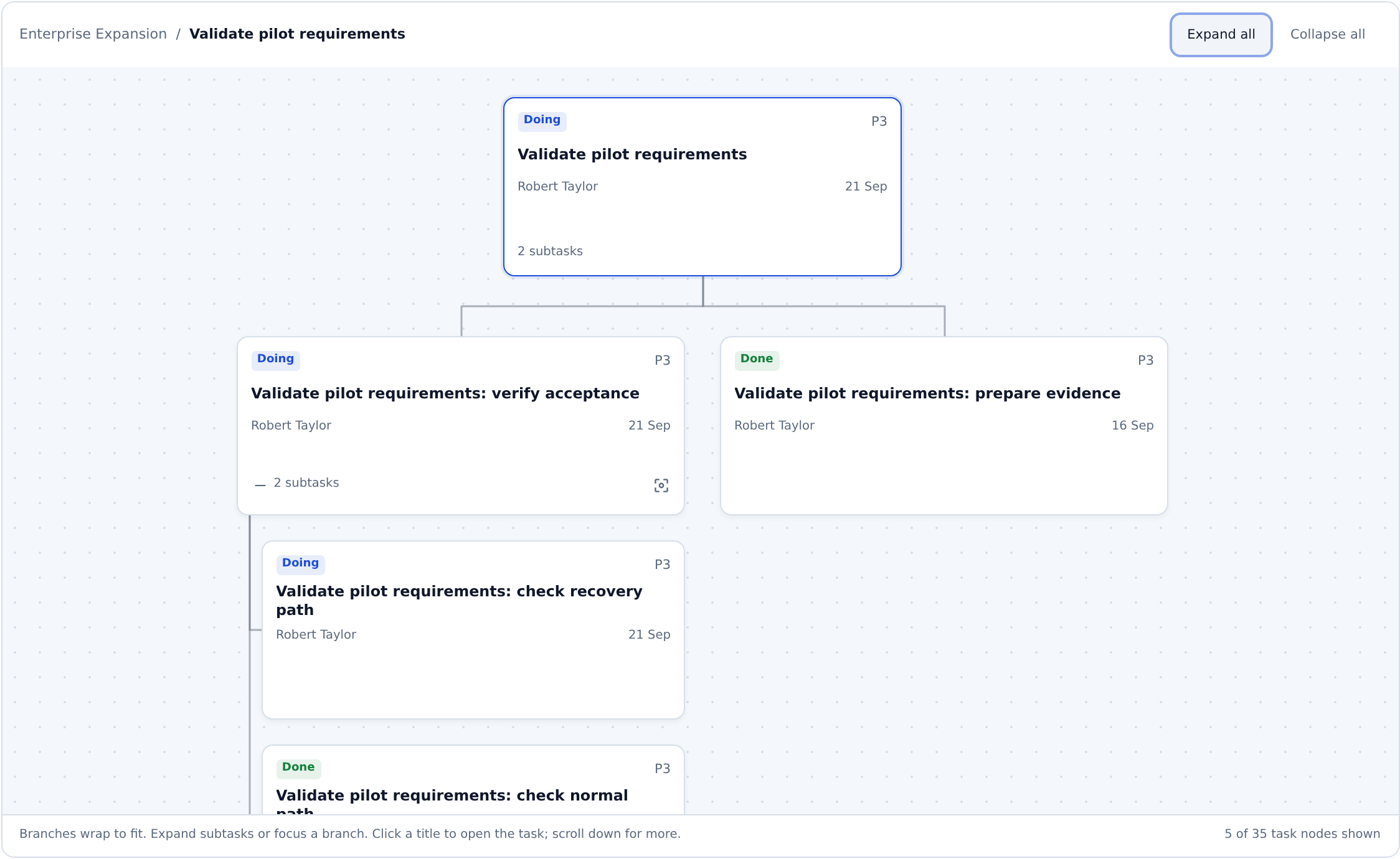
- Open Validate pilot requirements and create two subtasks: prepare evidence and verify acceptance. Open verify acceptance and add normal-path and recovery-path checks beneath it. Assign and date each executable check.
- Add explicit dependencies for the sequence: scope before terms and requirements, both before commitment approval, then approval before handoff. A parent/subtask link alone does not add these arrows.
- Use Mind map to inspect the breakdown, Dependency Graph to inspect the handoffs, and the timeline to review dates. Ask the owners whether the sequence is feasible.
A parent represents an accepted deliverable. A child represents part of that deliverable. Add another level only when the child contains work that needs its own ownership, evidence, or handoff. Keep short instructions in the description. More hierarchy does not by itself improve a plan.
The shared demo contains this branch in Enterprise Expansion. See the populated demo examples and the subtask management guide before using it as a pattern for your own records.
Choose project status deliberately
| Status | Use it when | Management check |
|---|---|---|
| Planned | The project is being prepared and has not been released for execution. | Is the scope accepted, and is there capacity for the first tasks? |
| Active | The project is authorized and work is underway. | Which deliverable is being finished next? Avoid starting every task just because the project is active. |
| On Hold | A deliberate pause prevents the project from proceeding. | Record the reason, restart condition, and next review date in the description. Review task statuses separately. |
| Done | The agreed outcome has been accepted. | Check unfinished children, outstanding handoffs, and acceptance evidence before closing. |
| Cancelled | The organization has decided not to complete this outcome. | Record why, resolve affected commitments, and update remaining tasks. Cancellation is not successful delivery. |
Project status and task status are separate records. Changing the project status does not cascade to every task. The project detail progress percentage counts visible Done tasks, including visible subtasks, against visible tasks. It is not effort-weighted progress or a formal acceptance sign-off. Adding subtasks can change the denominator.
Reuse a project for the next cycle
Important: Commandix does not currently have an automatic project recurrence field. The supported recurring project workflow is to use project duplication as a repeatable project template, then set each new cycle's dates. Recurring tasks are available separately inside the task system.
- Create a project that represents the repeatable workflow. Example: Monthly Sales Pipeline Review, Quarterly Compliance Review, or Weekly Launch Readiness.
- Add the standard task list, task priorities, assignees, and team membership.
- Keep this project clean enough to reuse. Many teams name the source project with "Template" or keep it in PLANNED status.
- Open the project detail page and select Duplicate.
- Commandix creates a copy, resets project status to PLANNED, sets project start date to today, copies tasks, resets copied tasks to PLANNED, clears task due dates, and copies project members.
- Rename the copy to include the new cycle's month, quarter, or launch name.
- Review the copied project's dates. The current Edit Project dialog does not expose project-date controls. If the new cycle needs different project dates, create a fresh project with those dates and recreate its work, or ask support about correcting the copy.
- Adjust task due dates, owners, dependencies, and project members for the current cycle.
- If one task in the project must repeat automatically, set that task as a recurring task from the task detail modal.
 Enlarge
Duplication is not a complete historical clone. It clears the project end date and does not copy comments, attachments, task dependency links, subtask relationships, or task recurrence settings. Review work types, estimates, goal links, and hierarchy on the copy before using it as the next cycle.
Project detail capabilities
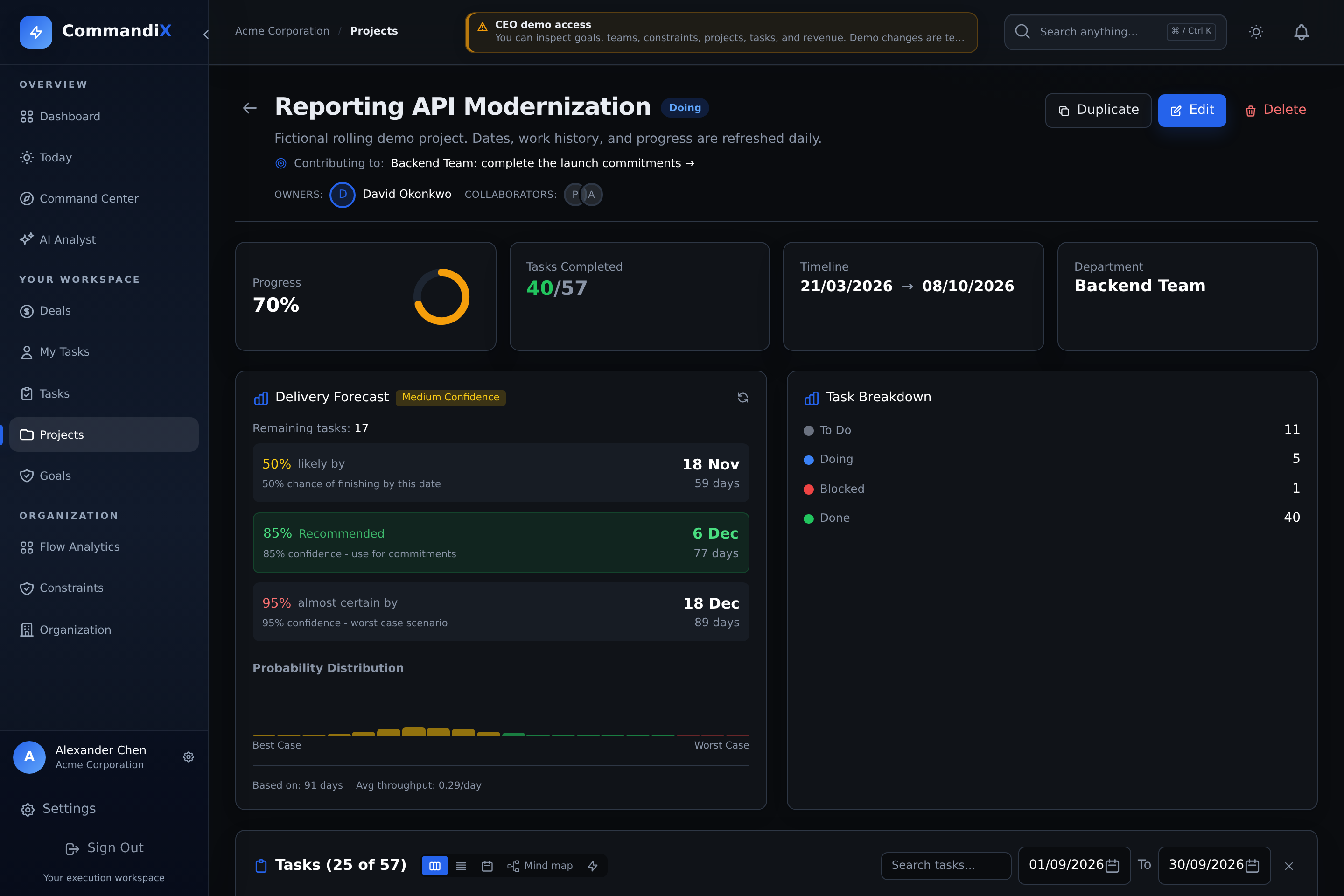
The task section has its own date filters. If its visible count is smaller than the project total, clear those filters before concluding that tasks are missing. A delivery forecast is an estimate based on available flow history, not a promised delivery date.
Progress gauge
Shows project completion based on visible tasks and done count.
Forecast widget
Shows project completion forecast using current project and flow data.
Board view
Move project tasks through To Do, Doing, Blocked, and Done.
List view
Scan project tasks in a compact list.
Calendar view
Place project work by task due dates.
Mind map
Expand nested tasks, focus a branch, and return through its breadcrumbs.
Dependency graph
Inspect explicit task-to-task handoffs. Red highlights identify critical-chain or P1 work.
Gantt-style timeline
See dated tasks across the selected date range.
Team members
See the people involved and their task completion counts.
Drill into tasks with Mind map
Use Mind map when you need to understand how a project is broken into tasks and subtasks. Use Dependency Graph when you need to understand sequencing. A parent/subtask relationship alone does not create a dependency.
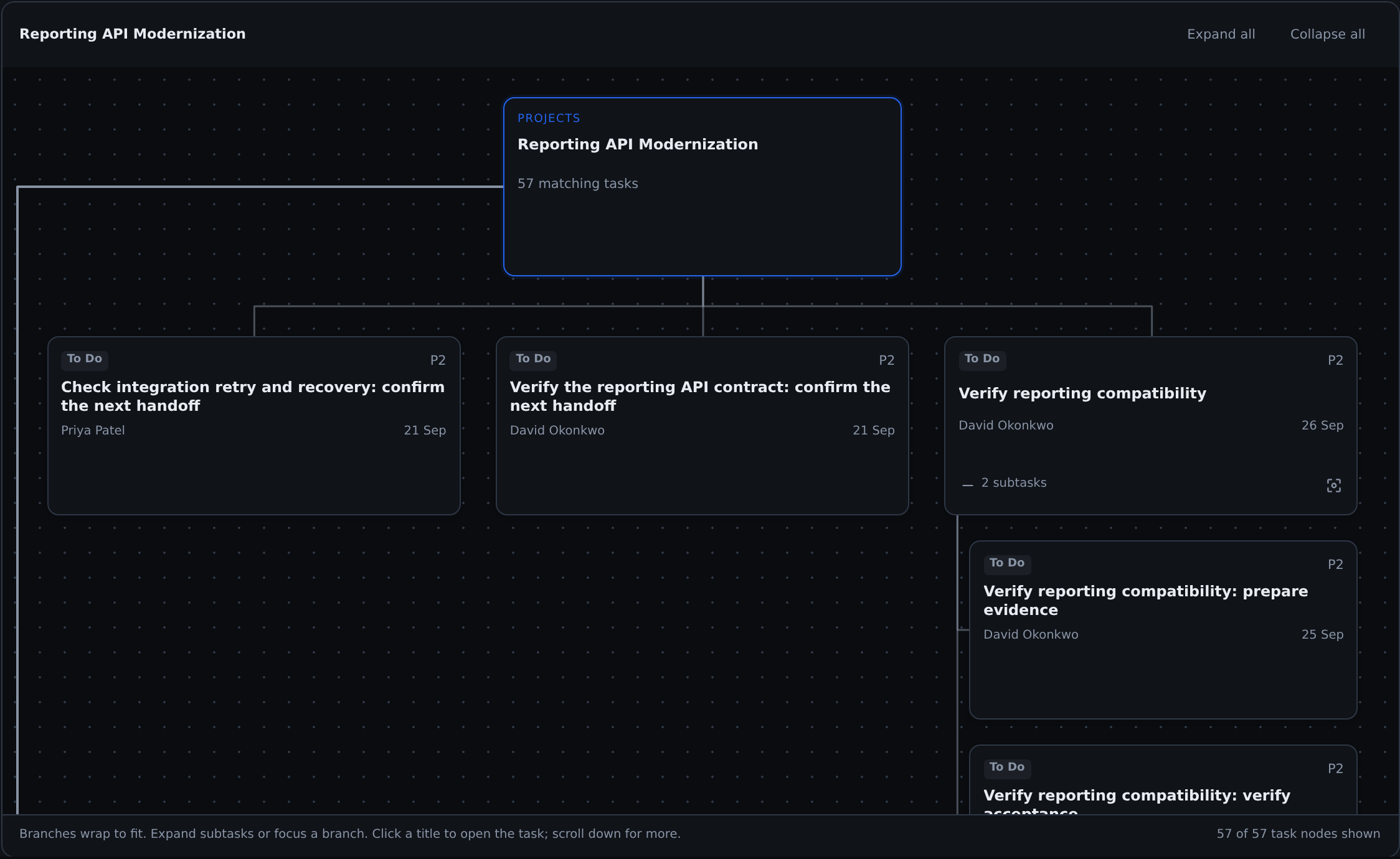
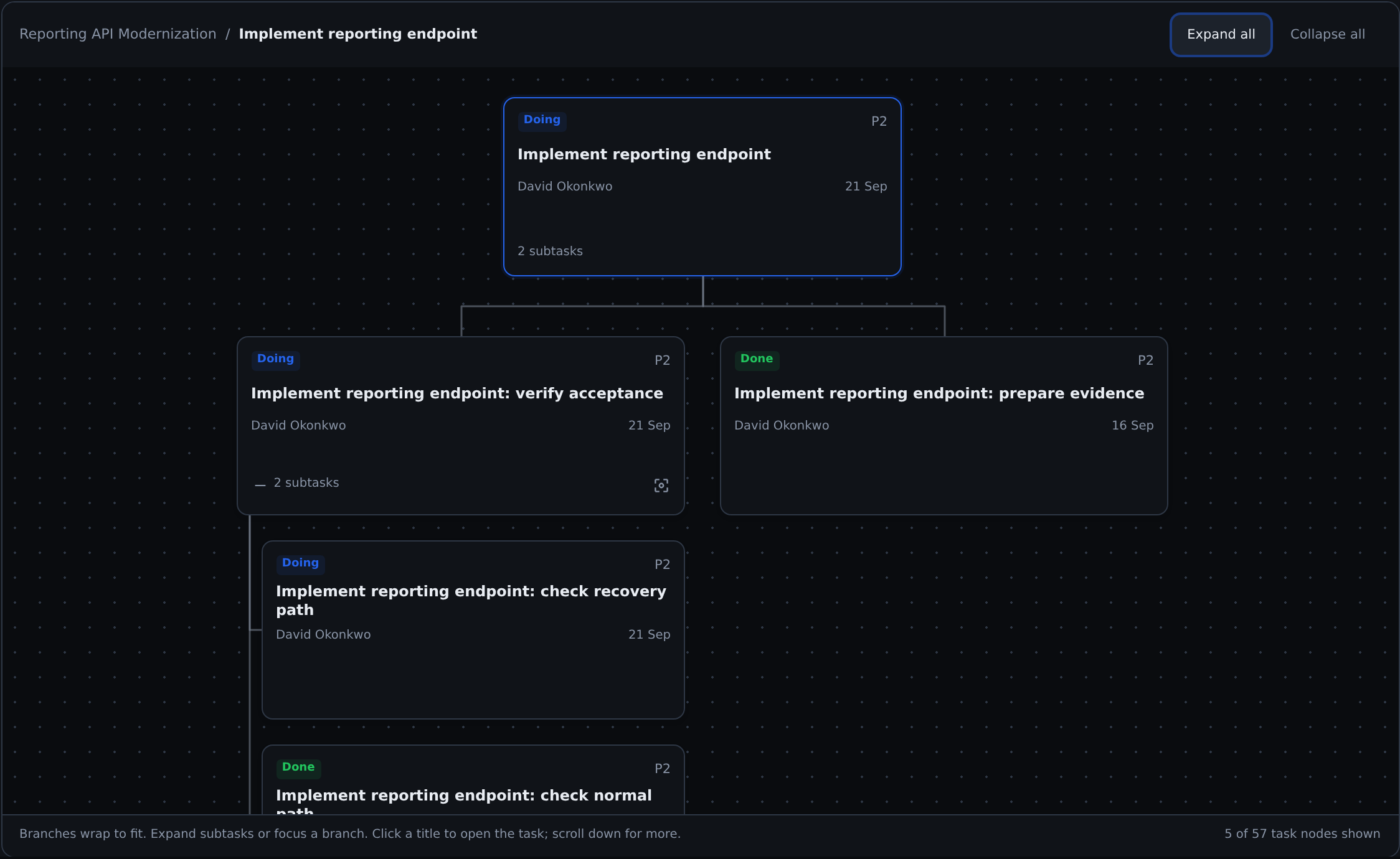
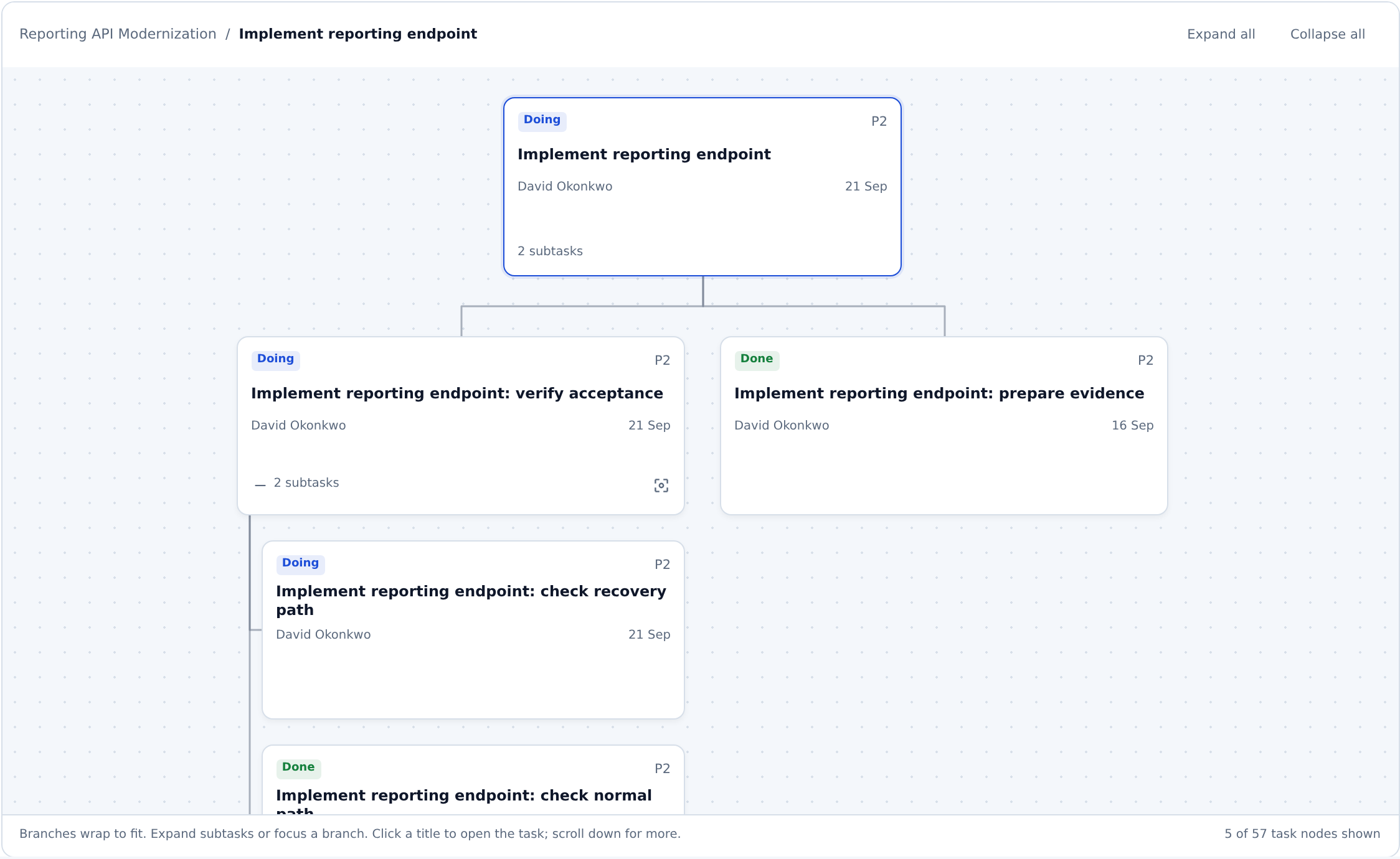
Top-level branches run horizontally across the available width and wrap onto new rows. Within each branch, subtasks stack underneath their parent with vertical connector lines. On a narrow screen, branches use one column. Card text stays at its normal size, and larger maps scroll vertically without sideways scrolling.
The map initially shows top-level tasks with their branches collapsed. This can look like a one-level map even when nested records exist. Use a task's plus control or Expand all to reveal the stored hierarchy. Reload an already-open project after the shared demo has refreshed.
 Enlarge
- Open a project and select Mind map beside the Board, List, and Calendar controls in its task section.
- Use a task's plus control to expand its direct subtasks. Repeat on a nested task to go deeper. The minus control collapses that branch.
- Select Focus on this branch, the corner-shaped control on a task with subtasks, to show that branch on its own.
- Use the breadcrumb task names or the project name above the map to move back up. Expand all and Collapse all control the branches.
- Scroll down within the map, or drag its background vertically with a mouse, to reach further branches. The layout fits the width automatically when the screen or sidebar changes. Select a task title to open its existing detail dialog.
The map uses the project task search and date filters. When a matching subtask needs a parent that does not match, the parent appears with a dashed border and a Context label. Clear filters to inspect all permitted project work. Only tasks returned for your access level are shown. An inaccessible parent is not fetched or revealed.
 Enlarge
Add subtasks through the task dialog's Subtasks section. Enter a title and use the plus button or Enter. Opening a subtask lets you add another level. New subtasks and completion changes refresh the project map after the request succeeds.
 Enlarge
Inspect task handoffs in Dependency Graph
- Open a project and select Dependency Graph in the task view controls.
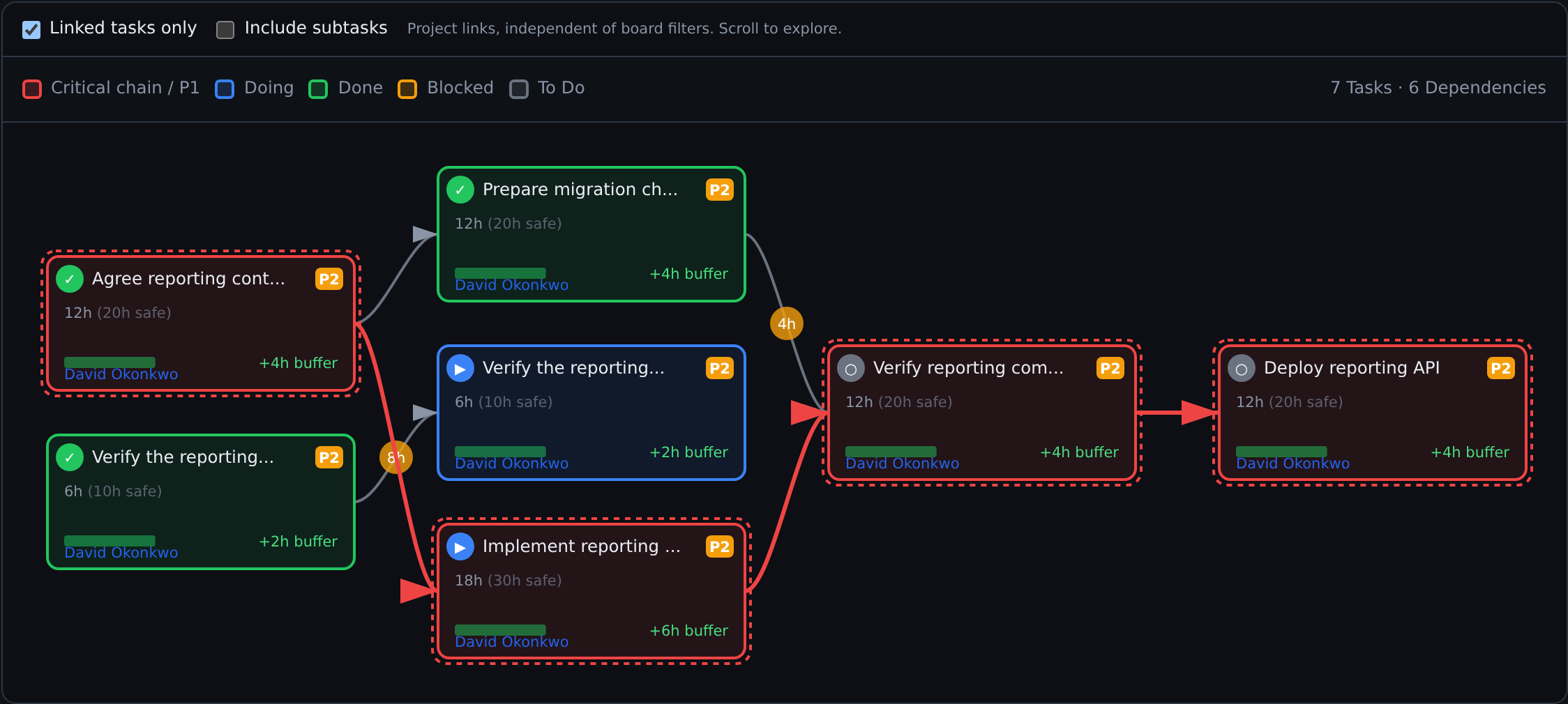
- Linked tasks only is selected initially. It hides independent tasks so the dependency sequences are easier to read. Clear it to include unlinked work.
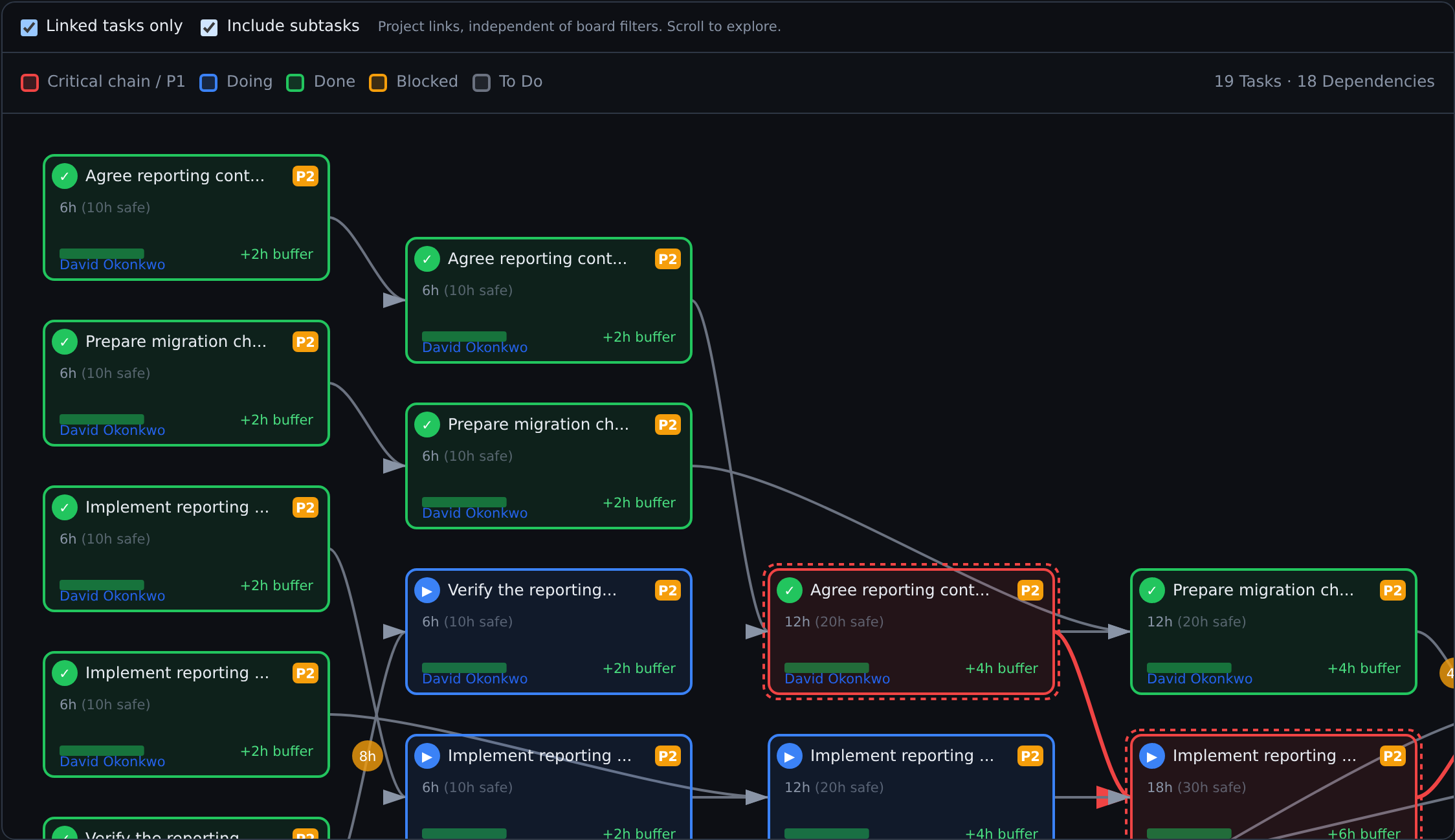
- Select Include subtasks to include nested tasks and their explicitly recorded dependency links. Parent links are not converted into dependency arrows.
- Follow arrows from a predecessor to its successor. Hover a connection for its stored dependency type. Select a task, or focus it and press Enter, to open its details.
- Scroll inside the bounded graph to inspect a larger sequence. The graph has its own scope controls and is independent of the board's date and search filters.
 Enlarge
A FINISH_TO_START link means the predecessor must finish before the successor starts. A FINISH_TO_FINISH link allows preparation to overlap but requires the predecessor to finish before the successor finishes. The demo uses both. Amber hour badges show stored feeding-buffer hours. Red borders identify tasks marked on the critical chain or given P1 priority. They are not a newly calculated resource-levelled schedule or proof of a bottleneck.
The graph draws links only when both endpoints are visible tasks in this project. Cross-project handoffs remain in the task's dependency records and broader delay analysis. With subtasks excluded, links to those subtasks are also excluded from the diagram and its connection count.
 Enlarge
To add a project-level dependency, open the successor parent or standalone task, find Dependencies, select its predecessor, and save. The project editor's selector lists other root tasks in the project. Its subtask dialog does not offer that selector. See task dependency instructions for the task workflow. If no arrows appear, check the scope controls, confirm that a dependency was saved, and confirm that both endpoints belong to this project and are visible to you.
Explore the demo relationships
The fictional Acme workspace includes a five-step workflow in each of its nine projects. Every step has two subtasks. The third step has a further pair of acceptance checks, so each project includes at least twelve nested work records. Those child records have their own owners, statuses, dates, history, and explicit finish-to-finish handoffs.
| Demo project | Worked sequence |
|---|---|
| Platform 3.0 Development | Scope, rollback preparation and architecture validation, release-readiness approval, rollout. |
| Mobile Apps Launch | Scope, store assets and platform compatibility, release approval, submission. Compatibility remains blocked on the shared platform review. |
| Reporting API Modernization | Contract, migration checks and endpoint work, compatibility review, deployment. |
| Brand Refresh | Brief, guidelines and assets, package approval, publication. The example is complete. |
| Enterprise Launch Campaign | Brief, copy and creative, package review, campaign launch. |
| Enterprise Expansion | Pilot scope, terms and requirements, commitment approval, customer handoff. |
| Sales Enablement Program | Outcomes, exercises and playbook, review, training. The example is complete. |
| Next Release Discovery | Questions, customer research and technical options, comparison, scope decision. Work remains planned. |
| Legacy Reporting Export | Requirements and mapping are complete. Prototype, review, and release are cancelled, with their earlier relationships retained. |
The two preparation branches feed one review, followed by the final handoff. Completed parents have completed children. Start and completion dates respect the dependency examples. Independent historical tasks remain available for throughput and completion charts.
 Enlarge
This shared demo refreshes once per UTC day or when its fixture version changes. Dates move forward and temporary operational edits are replaced. Accounts, credentials, access setup, and billing are preserved. These are sample records for exploring the UI, not customer results. See shared-demo access and reset behavior.
Read full titles and open tasks from the timeline
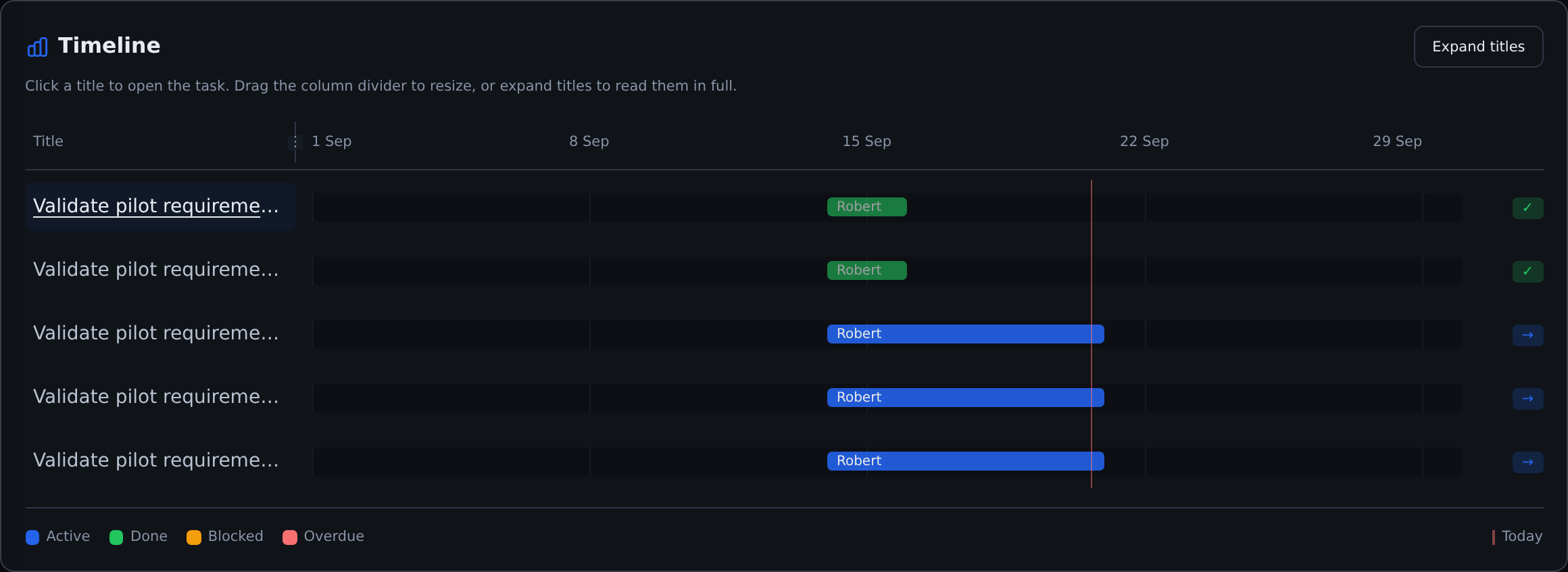
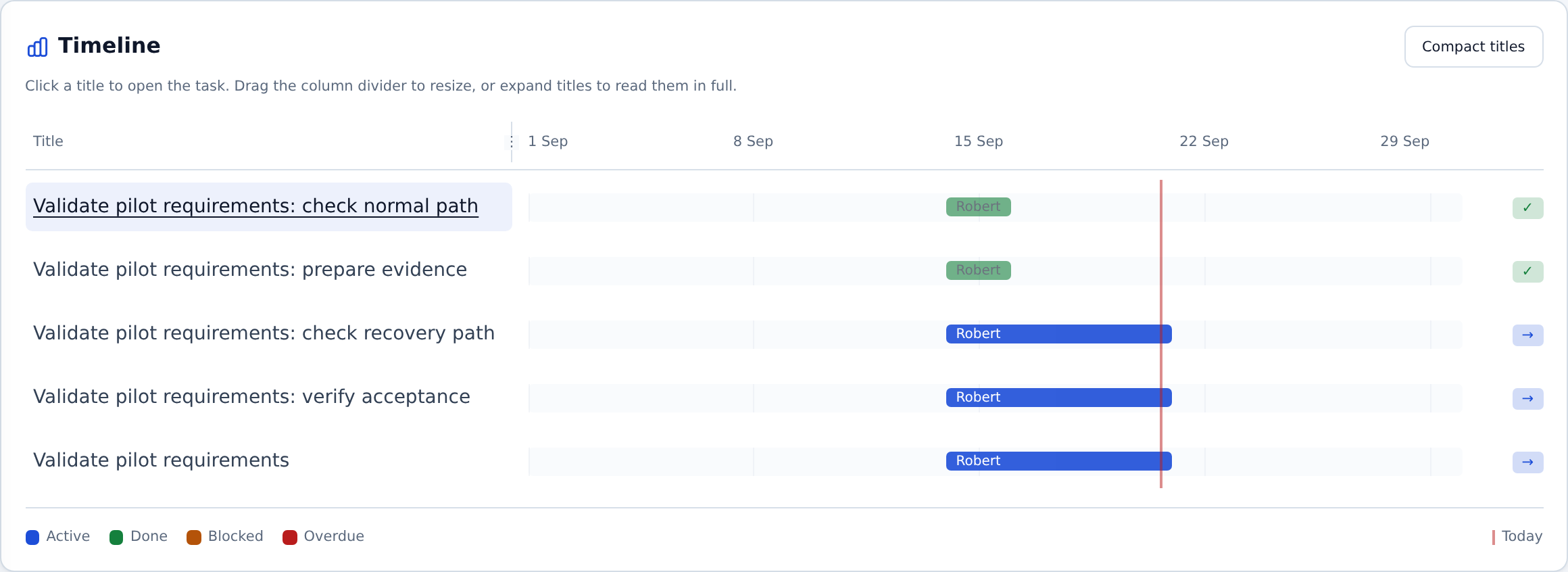
The timeline uses the project task search and date filters and shows tasks with due dates. Select a task title to open its details, or use Tab and Enter. Hovering keeps the title readable in both themes and exposes its full text in the browser tooltip.
- Select Expand titles to widen the name column and wrap long titles onto additional lines.
- Drag the divider beside Title to choose a column width. Keyboard users can focus the divider, use Left or Right to resize, and Home or End to reach the width limits.
- Select Compact titles to return to the compact column. On smaller screens, scroll inside the timeline to inspect dates and bars.
Date labels and task bars use the same time axis as the column resizes. The bar uses the task's start and due dates. If no start date is recorded, the display uses a three-day visual fallback before the due date. The chart is not an automatic resource-levelled schedule, and dragging the title divider does not change task dates.
 Enlarge
 Enlarge
Run a weekly project review
Use the same project scope and reporting window each week. Begin with the next accepted deliverable rather than the total number of busy tasks.
- Check the outcome. Has scope or the acceptance date changed? Update the description and record the reason for a changed commitment.
- Inspect blocked work. Open the blocked task, its predecessor, and its latest comments. Name the missing input or decision and who can remove it.
- Review handoffs. Use Dependency Graph to find the next unfinished predecessor. Check whether multiple projects are waiting on the same review or specialist.
- Check actual progress. Compare Done tasks with acceptance evidence. Expand parents in Mind map so incomplete children do not disappear behind a summary.
- Choose one intervention. Reorder a queue, clarify a decision, or protect review capacity. Record ownership and a review date in the relevant task. Use Constraints for a wider operating change.
Before marking the project Done, review open subtasks, unresolved dependencies, handoff instructions, and any recurring work that should continue independently. Do not mark unfinished work Done merely to make the progress gauge reach 100%.
Troubleshoot a project that looks incomplete
| What you see | What to check |
|---|---|
| Too few tasks | Clear project search and date filters. Check the tasks' Project fields. A member may see only assigned tasks, while a manager sees a wider scope. |
| Mind map has one visible level | Use Expand all. Confirm that children have real parent relationships, not just similar titles. Reload after a demo refresh. |
| No dependency arrows | Check that links were saved, both endpoints are in this project and visible to you, and Include subtasks is selected when necessary. |
| A task is missing from the timeline | Add a due date and check the date filters. The project end date does not populate task due dates. |
| The forecast is unavailable | Review recorded completion history and the widget's explanation. A planned date alone is not enough to infer a reliable delivery forecast. |
| Duplicated project has lost its structure | Duplication does not copy parent links or dependencies. Rebuild and verify them before activating the new cycle. |
| A collaborator cannot see the expected work | Check role, unit responsibility, and task assignment with an administrator. Project membership is not a project-isolated guest access policy. |
How to manage project owners and collaborators
- Open the project detail page.
- Select edit project.
- Add up to two owners.
- Add collaborators by searching active users.
- Save. Owners and collaborators are stored as project members.