 Commandix
Commandix guide
Getting Started
Sign in, find your work, and set up your team. Start here before creating projects or investigating delivery delays.
Last reviewed September 19, 2026
View this screen in Commandix
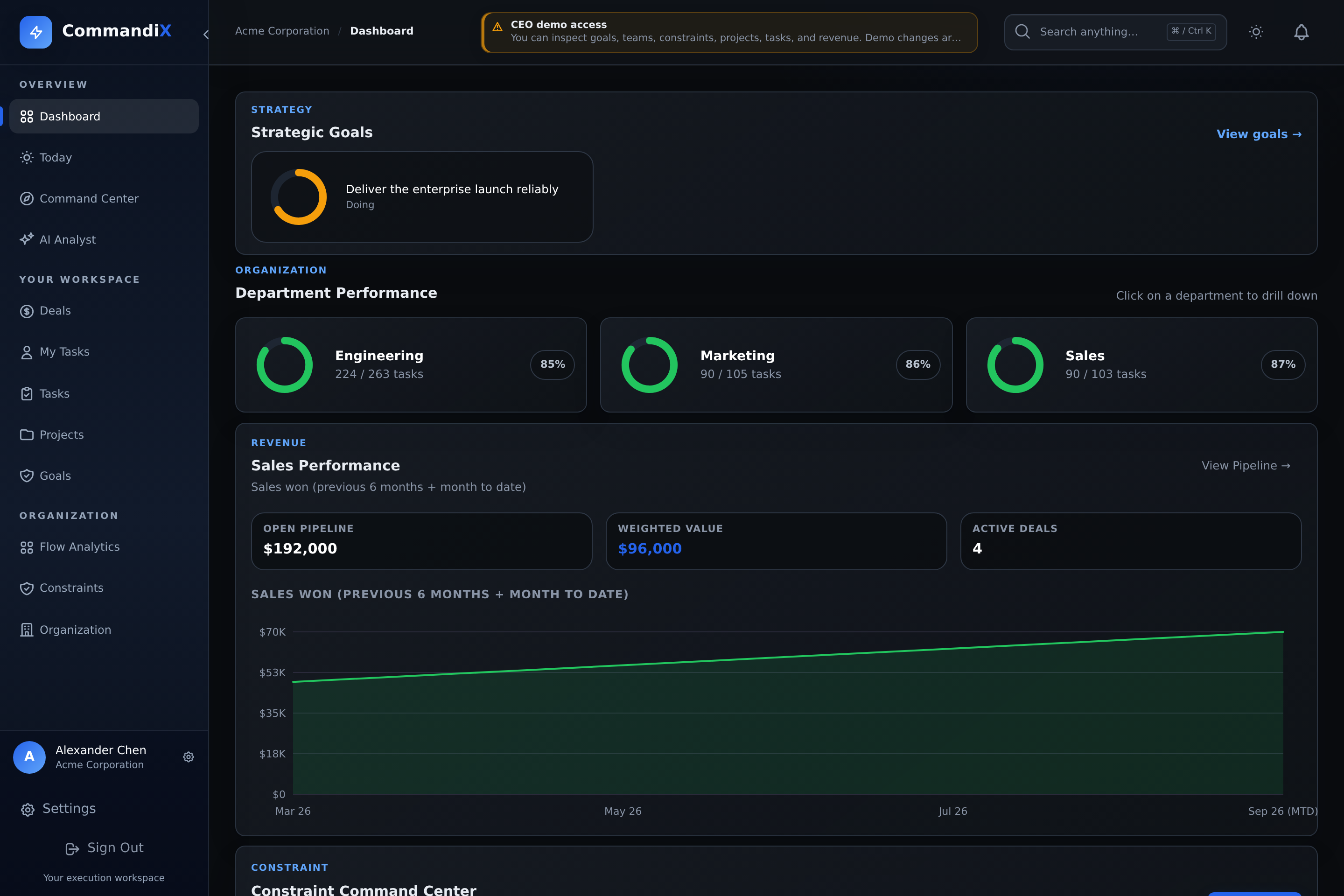 Enlarge
First login checklist
- Sign in at app.commandix.io. If you received an invitation, open its link first. Use the password you set during acceptance, or the same Google account used to accept. Organization-wide Microsoft 365 and Google SSO depend on your organization's configuration.
- Open Profile. Confirm your name and enable MFA if your organization requires stronger authentication.
- Open Settings. Choose your theme, language, and notification preferences. Organization currency is an administrator setting, not a personal preference.
- Open My Tasks. Review work assigned to you and create your first personal task if you do not have active work yet.
- Managers should open Organization and Tasks. Verify the org tree, team membership, open work, blockers, and unassigned tasks.
Layout and navigation
Sidebar
Primary navigation. It can be collapsed to icon mode on desktop and becomes mobile navigation on smaller screens.
Search
Select the search button or press Ctrl+K (Command+K on Mac) to open the command search. Jump to a page, or type at least two characters to find accessible tasks, people, goals, and projects. Managers can also find departments. Use arrow keys and Enter to open a result, or Escape to close.
Notifications
Notification panel surfaces task, project, and goal updates. Selecting a notification opens the related item.
Favorite projects
Star a project to pin it into the sidebar for faster access.
Roles and access
| Role or access type | What it can do |
|---|---|
| SUPERADMIN | Platform-level administration, tenant creation, tenant-wide audit views, and superadmin-only settings. |
| OWNER | Tenant owner or executive. Can see the full organization, manage users, settings, projects, goals, deals, audit logs, and constraints. |
| MEMBER | Standard employee. Can manage assigned work, personal tasks, profile, and visible goals/projects. |
| VIEWER | Read-oriented account. Section access can grant visibility to specific modules such as deals, goals, projects, tasks, or units. |
| Unit manager/head | Can manage work in the unit they lead and descendant units. Manager-only routes become available. |
Recommended setup order
- Create or verify organization units under Units and People.
- Invite employees and external contractors with any email provider. CSV import and the Microsoft Entra picker are also available where configured.
- Create strategic goals with clear start and end dates.
- Create projects that contribute to those goals.
- Create tasks inside projects and assign them to people or team queues.
- Use the Constraints module after you have active work, dates, and dependencies to investigate potential bottlenecks.
Sign in to a demo workspace
Demo access uses an email verification code instead of a password. Open the demo invitation, verify the six-digit code sent to your email, and enter the demo. For a later visit, use the demo email-code sign-in option. Demo access has an expiry date; ask for a new invitation if yours has expired.
Demo changes are temporary and do not update the shared demo data. Do not use the demo to store real business records or customer information.
The shared Acme demo refreshes its fictional work data daily. Task dates, project status examples, sales history, blockers, next actions, and chart history roll forward together, including at month and year boundaries. Accounts and demo access remain in place. This refresh does not run on customer organizations or on sample data imported into a customer's own workspace.
The screenshots in these guides are dated snapshots of the fictional Acme demo, not customer results. Your dates, totals, available controls, and navigation can differ with your role, plan, configuration, and the demo's next refresh. Select Enlarge to inspect an original high-resolution image.