 Commandix
Commandix guide
AI Analyst
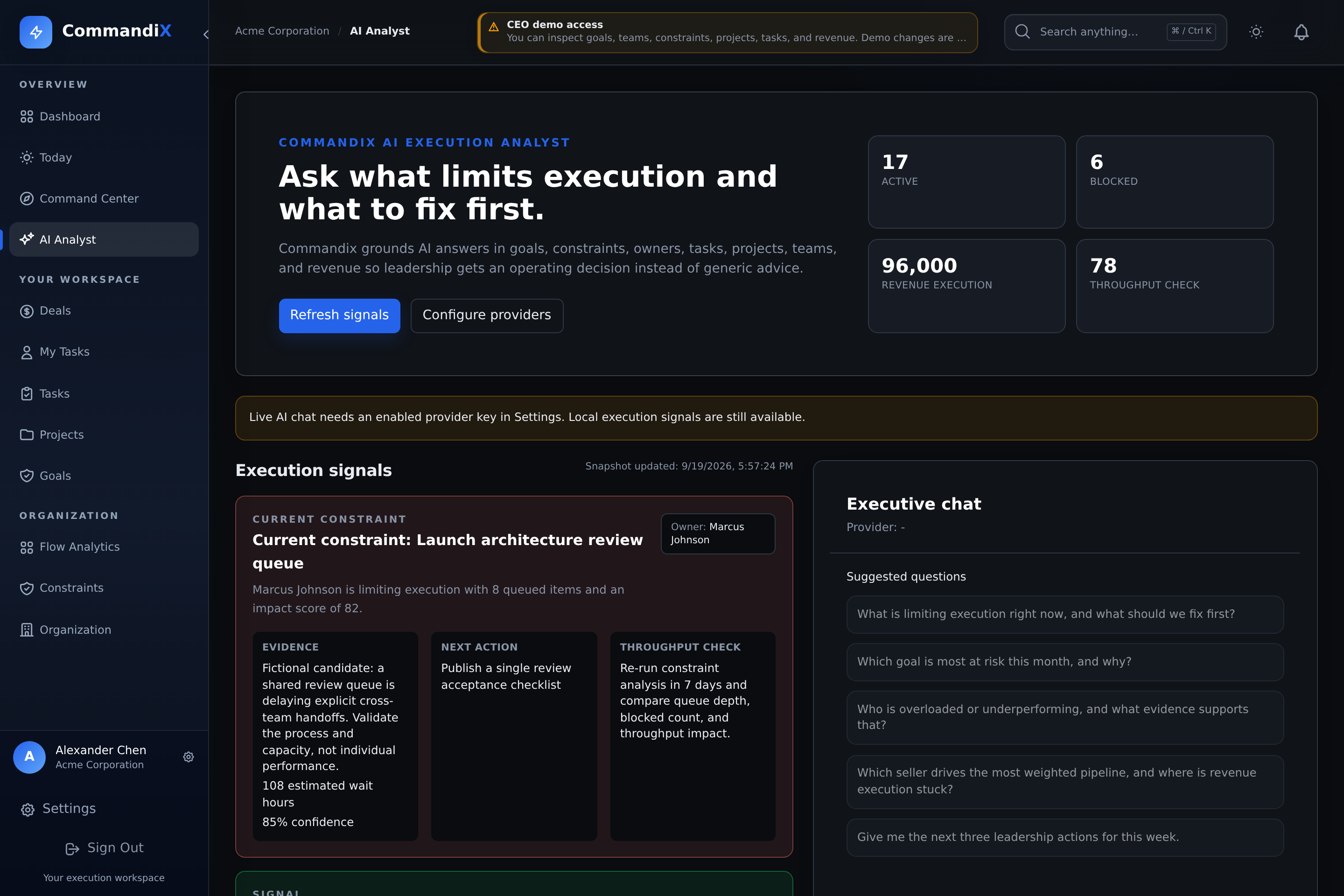
Review operating signals and ask questions grounded in your workspace. Use the answers as a starting point for investigation, then check the underlying work before acting.
Last reviewed September 19, 2026
View this screen in Commandix
 Enlarge
Who can use AI Analyst?
AI Analyst is available to Owners and Superadmins. It shows local insights from the organization's operating snapshot. Live chat also requires an enabled AI provider with a saved API key. Demo accounts can review local insights, but cannot configure providers or use live AI chat.
Configure an AI provider
- In a real workspace, open Settings -> AI.
- Choose a supported provider and enter an API key approved for your organization's use. Review the model and any custom base URL before saving.
- Turn on Enabled. Optionally select Use as default, then save.
- Select Test and check the result. A test makes a request to the selected provider.
- Select Open AI Analyst, choose an available provider, and ask a specific question about the work you want to investigate.
Ask a question you can verify
Start with a concrete result or project, such as “Which blocked tasks should I review before the launch?” Compare the response with task dates, owners, dependencies, and the constraint evidence. AI output can be incomplete or incorrect. It does not prove a root cause or replace a management decision.
Understand what is sent to your provider
Live chat sends conversation messages and a workspace execution snapshot to the selected provider to generate an answer. Before enabling it, confirm that your organization's provider agreement and data policies permit that use. Do not put passwords, API keys, or other secrets in questions.
If live chat is unavailable
Check that you are using an Owner or Superadmin account outside the demo, then verify the provider is enabled and has a saved key. Run Test in Settings. Review provider access, model availability, and the error shown; share the error with your administrator without sharing the key.